Article Overview
The following article describes EasySend’s audit trail. It explains what it is used for and describes the structure of an audit trail PDF file. The article describes audit trail configuration for a digital process and an EasySign process and details additional privacy, security, and compliance standards EasySend supports.
What is Audit Trail - Certificate of Completion
Audit trail leverages transaction data to provide a summary of actions that occurred on a digital/EasySign process to establish and validate the authenticity of a transaction.
Digital interactions of behavioral events from a digital process or an EasySign process are collected for compliance and legal reasons to strengthen the proof of signature and fill.
The collected information is used to create audit trail documents (certificates of completion).
The audit trail document can be converted to a PDF or JSON, to be sent via email or through service integrations (for additional information, see the Audit Trail Document Configuration section).
Figure 1 displays an example of an audit trail document converted to a PDF:
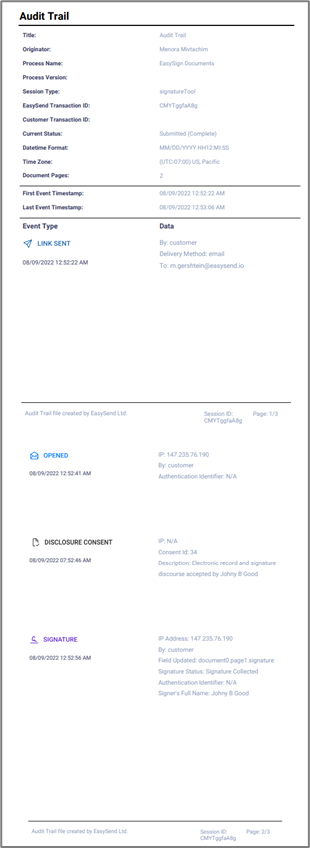
Figure 1: Audit Trail PDF
Audit Trail PDF Structure Example
The audit trail PDF is built from a header and an event log.
Header
(See Figure 2)
The header lists session-related information that is not event-specific:
- Title - the title of the audit trail document.
- Originator - the name of the EasySend customer.
- Process Name - the name of the process, digital or EasySign.
- Process Version - the version of the digital process.
- Session Type - the type of the session, digital process, or EasySign process.
- EasySend Transaction ID - the EasySend unique identifier of the transaction.
- Customer Transaction ID - an internal identifier used by the customer to identify the transaction.
- Current Status - displays the current status of the transaction.
- Link Sent
- Opened
- Data Updated
- Signature
- Reminder Sent
- Webflow Submitted
- Disclosure Consent
- Co-Browse Link Sent
- Save & Continue
- Datetime Format - The selected date and time format:
- MM/DD/YYYY HH12LMI:SS
- DD/MM/YYYY HH24:MI:SS
- YYYY/MM/DD HH12:MI:SS
- Time Zone - the selected time zone.
- Document Pages - the number of pages the document to submit contains.
- First Event Timestamp - The timestamp of the first event of the session/transaction.
- Last Event Timestamp - The timestamp of the last event of the session/transaction.
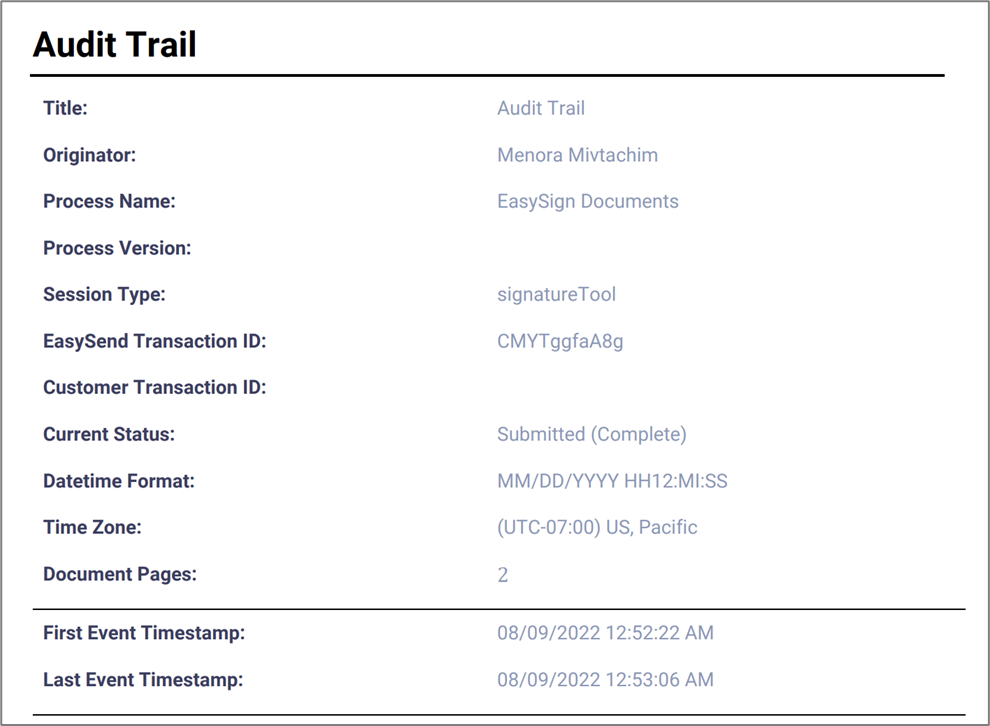
Figure 2: Header Example
In JSON formats only the header includes an additional field, Filename, which displays the auto-generated name of the audit trail document.
Event Log
The Event Log is a chronological stream of user interaction events. Each event details different information, for example, see Figure 3:
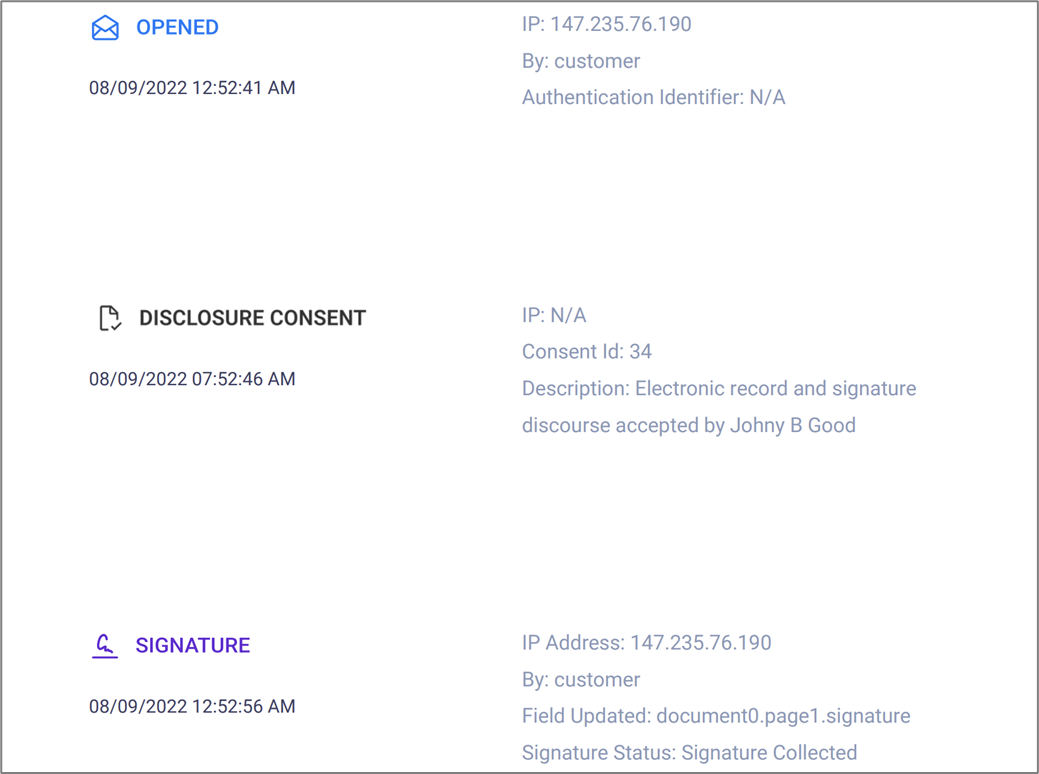
Figure 3: Event Log
The included events are:
- Link Sent
- Opened
- Data Updated
- Signature
- Reminder Sent
- Webflow Submitted
- Disclosure Consent
- Co-Browse Link Sent
- Save & Continue
- Disclosure Consent is an EasySign event that displays information such as IP and a detailed description about signatures.
- By default, all events are included. You can request EasySend to exclude events. For additional information, please contact our support team.
Audit Trail Document Configuration
You can configure an audit trail document from the Builder platform using two different screens:
- Workflow Manager.
- Services screen.
Audit Trail Document Configuration - Workflow Manager
The following sections describe the audit trail document configuration using the Workflow Manager.
Overview
An audit trail document can be added as an email attachment (PDF/JSON) using the Workflow Manager. When a PDF format audit trail document is sent as an email attachment, it is created as a standalone PDF file and not as an appendix to the original PDF files of a digital process. Specific/additional PDFs can be attached to the email separately.
How to configure?
(See Figure 4 to Figure 6)
To configure the audit trail document using the Workflow Manager, perform the following steps:
- Navigate to the Workflow Manager screen of the desired Digital Process.

Figure 4: Workflow Manager Communication
- Click the desired available Email building block through which the audit trail will be sent, for example (1). If necessary, add a new Email first.
- Click Edit Message (2).
Result:
The Edit Message window appears:

Figure 5: Edit Message Window
- Navigate to the Attachments section (3).
- Check one of the Audit Trail As boxes (4) - JSON or PDF.
- Click Save (5).
Audit Trail Document Configuration - Services
An audit trail document can be configured using the Services screen by creating a service that receives a file as one of its inputs. The following service step types support the usage of files:
- REST API Service (JSON file).
- File Storage Service (JSON and PDF files).
When a PDF format audit trail document is created and sent through service integrations, it can be sent as a standalone PDF file or as an appendix to the original PDF files of a digital process.
Services integrations must be accompanied by an EasySend expert to fully fit your needs. For additional information, please contact our support team.
Audit Trail Document Configuration - EasySign Process
To configure an audit trail document export on an EasySign process, an environment variable must be added to your Player environment.
In contrast to a digital process that supports both standalone PDF audit trail files and appended PDF Audit trail files, an EasySign process supports only appended PDF Audit trail files. JSON Audit trail files are currently not supported.
Audit Trail Settings
General audit trail settings can only be set by EasySend. For additional information, please contact our support.