Overview
The following article describes the Accessible Table component.
Accessible Table vs Grid
(See Figure 1)
The Grid component could only arrange components in a layout. It looked like a table, but it wasn’t one. There were no column or row headers, and you couldn’t control alignment or spacing. Most importantly, a screen reader saw it as a set of separate items, so a user with a visual impairment couldn’t tell which value belonged to which column or row.
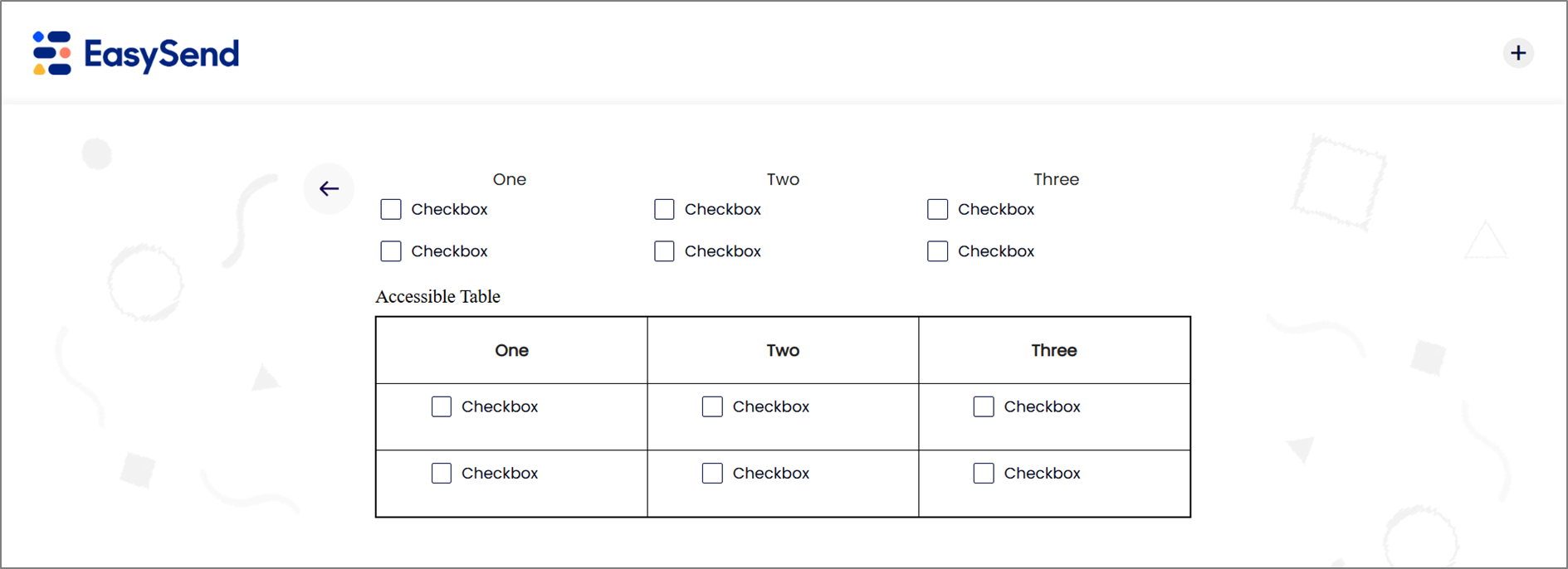
Figure 1: Accessible Table vs Grid
Accessible Table Characteristics
(See Figure 2)
The Accessible Table is a real table. Builder users can:
- Define column and row headers
- Control alignment and spacing
- Present structured data, like a price breakdown, coverage summary, or order details, clearly and consistently
Because it’s built as a true table, screen readers can announce each value together with its headers (for example, “Price per meter, Cabinets, $1,200”), so every customer can understand the data.
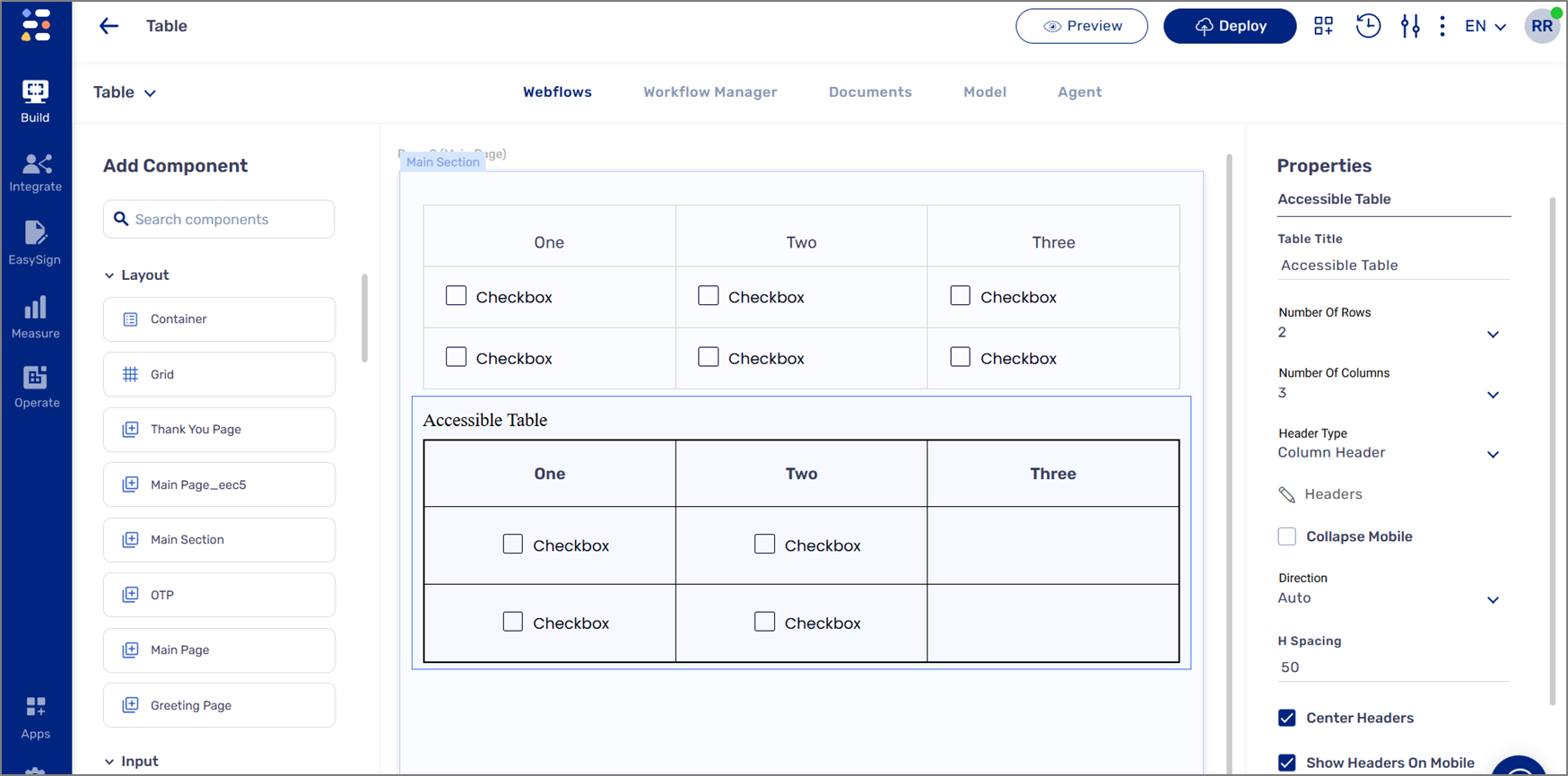
Figure 2: Accessible Table Properties
Business Value
- Accessibility compliance - customer-facing digital services increasingly have to meet accessibility standards such as WCAG, the ADA in the US, and the European Accessibility Act - for regulated customers like insurers and banks, an inaccessible form is a legal and reputational risk.
- Inclusive customer experience - customers who rely on screen readers or other assistive technology can complete the process independently, without calling for help or abandoning it.
- Clearer data for everyone - headers, alignment, and spacing make quotes, summaries, and comparisons easier to read and harder to misread, which means fewer questions and fewer mistakes.
- Less custom work - builder users no longer need workarounds or custom code to fake a table layout.
- A stronger sales story - accessibility is often a requirement in enterprise deals and procurement. Being able to say “our tables are accessible out of the box” removes an obstacle.
Adding an Accessible Table Component
(See Figure 3)
The Accessible Table component must be imported into a theme before it is available to add in a Webflow. For additional information, see the Adding Global Components section in the Themes article.
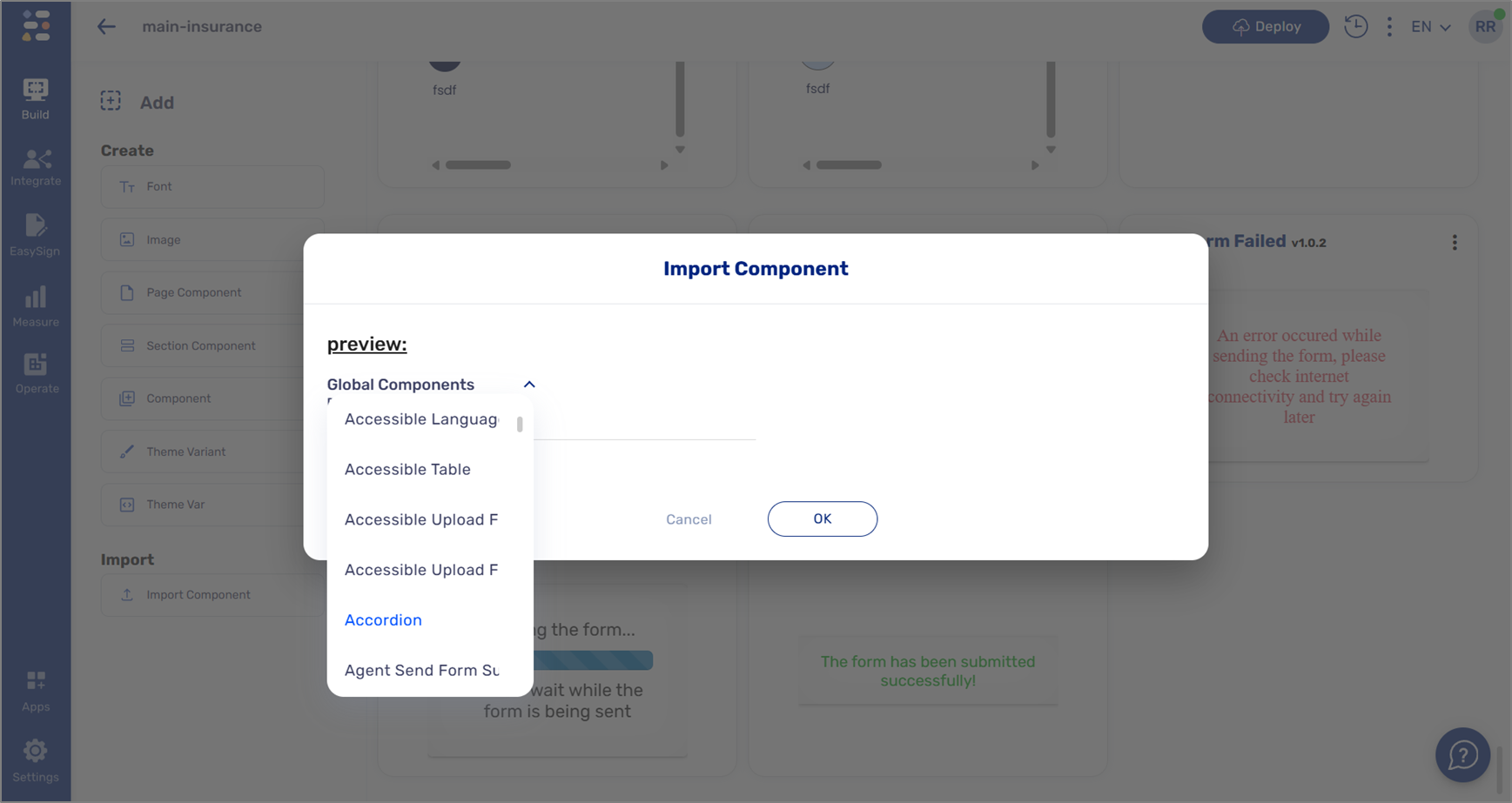
Figure 3: Adding Accessible Table