Article Overview
The following article explains how to use monday.com subitems in an EasySend journey.
Displaying Subitems
(See Figure 1)
After connecting your monday.com resources to a journey (see the Connecting your monday Reources article), if the board contains subitems, they will appear as a separate category
with a dropdown (1).
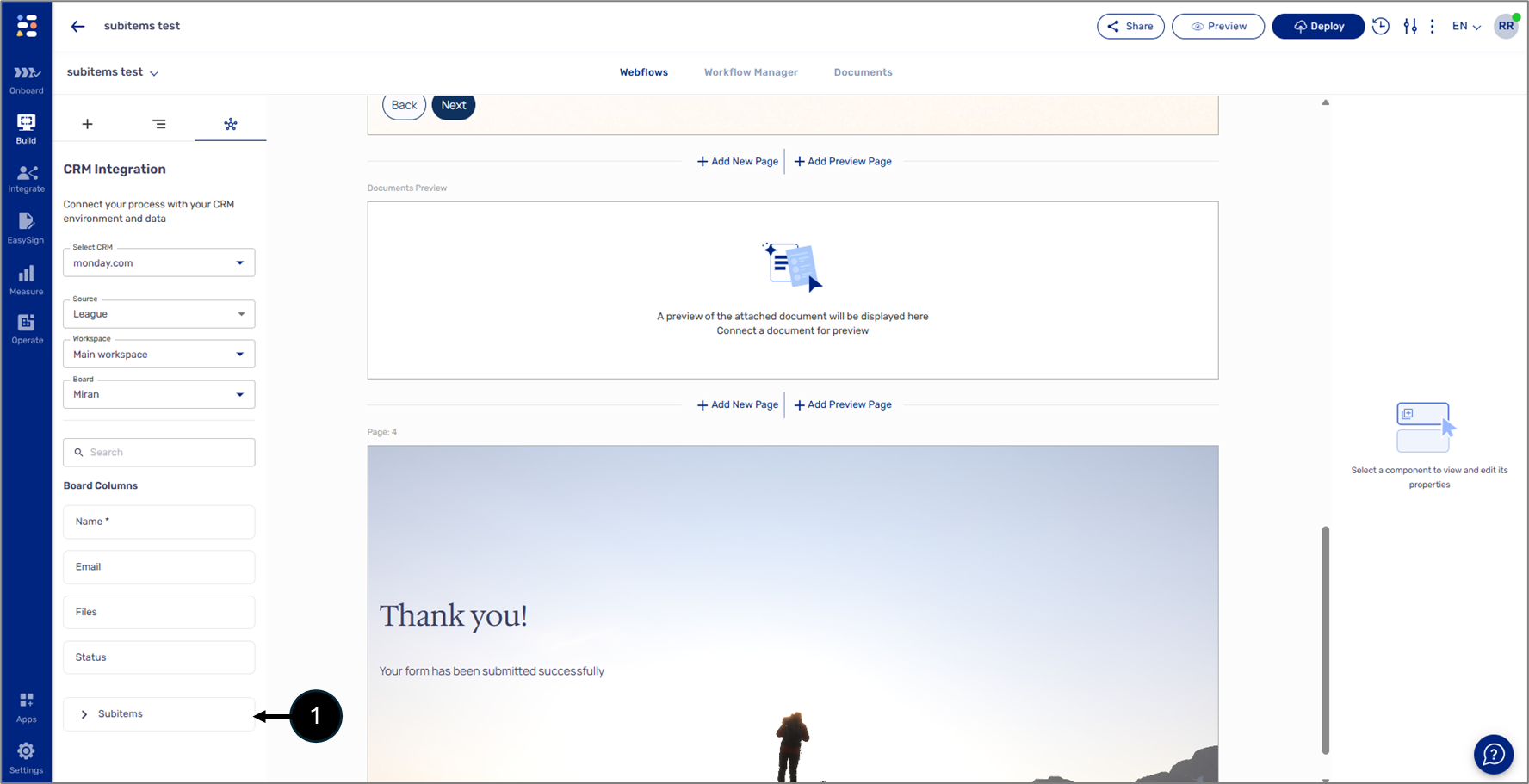
Figure 1: Subitems
Adding Subitems to the Canvas
(See Figure 2)
To add subitems to the canvas, first drag and drop the entire Subitems category (1). Once the category is added, it will appear as an Array type item (2).
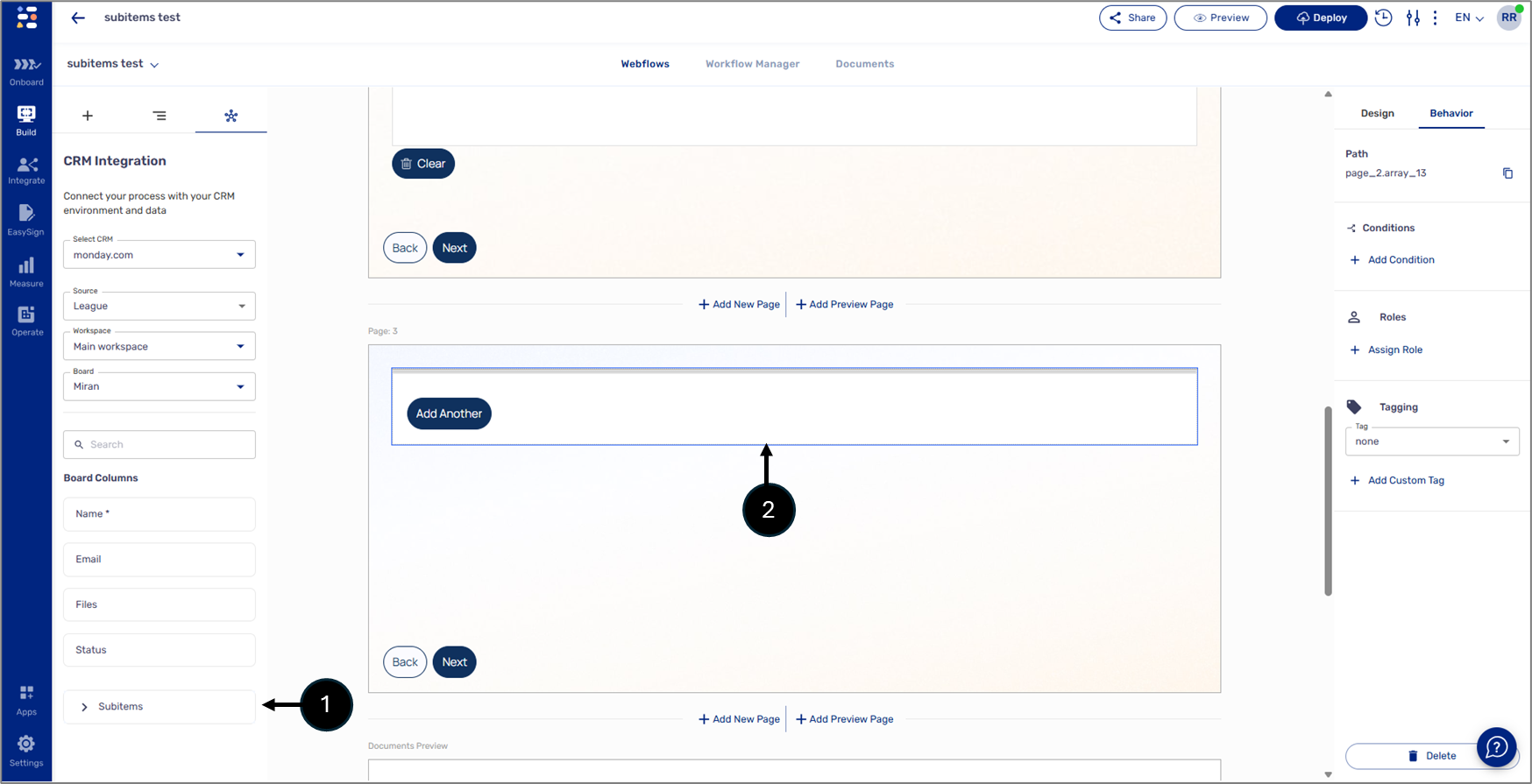
Figure 2: Added Subitems Category
Click the dropdown to display the actual subitems (3) and then drag and drop them into the Array (4).
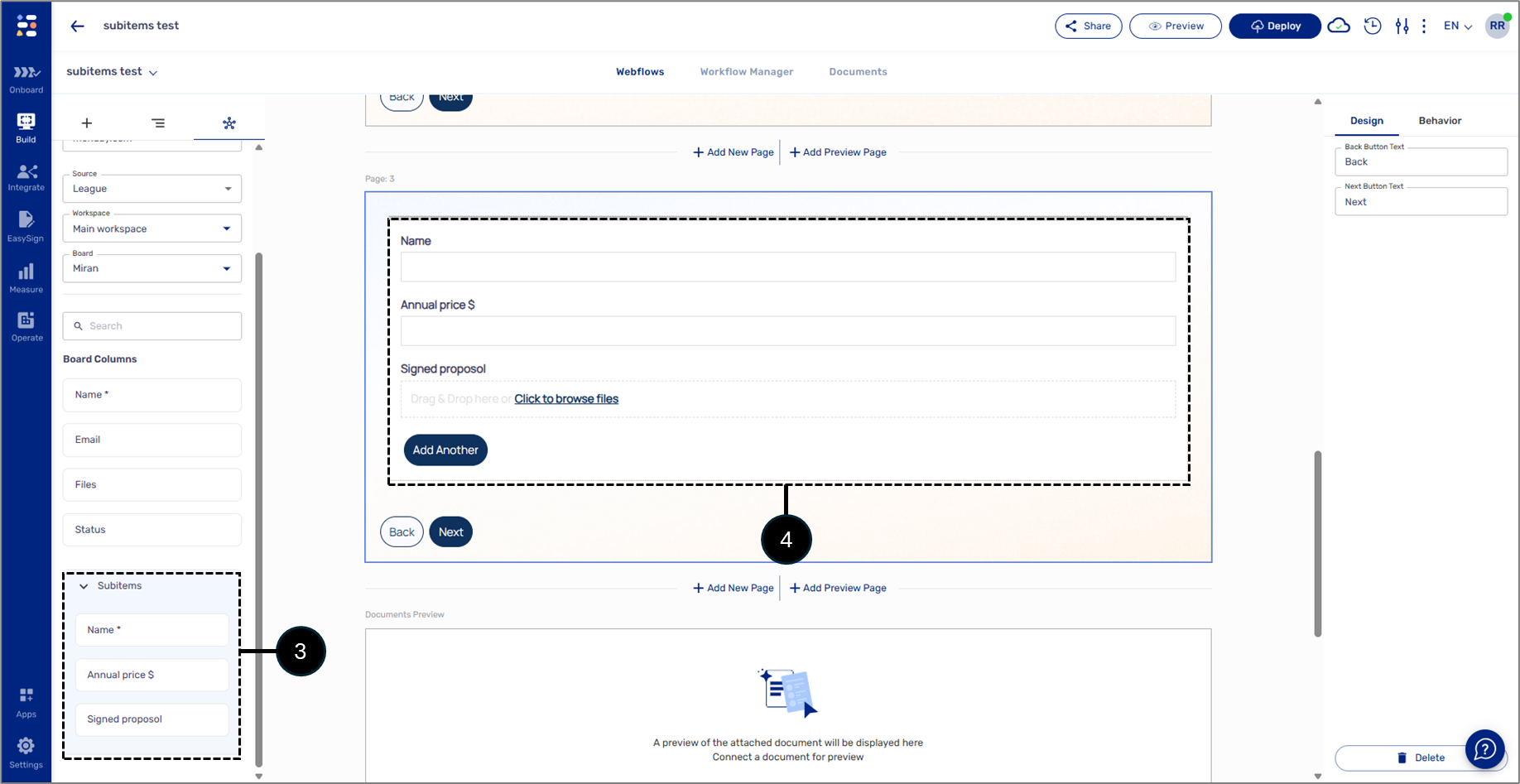
Figure 3: Added Subitems
Important Notes
- It is mandatory to drag and drop the Subitmes category into the canvas before dragging and dropping the actual subitmes.
- The Subitmes category will appear as an Array type item.
- It is mandatory to drag and drop subitems into the Array.
- Required subitems will be marked with an asterisk.