Article Overview
The following article explains how to add conditions to a PDF page.
Page Conditions
Page conditions allow you to control the visibility of content in your digital process based on user input. You can dynamically show or hide entire pages, sections, or fields depending on selections made during the process. This same capability is now available for PDF preview pages. When you upload a PDF to serve as a preview, you can define conditions that determine which PDF pages are displayed to the end user.
How It Works
When building your process, you can apply business-logic conditions that respond to user input (such as dropdown selections, toggles, or field values).
With PDF preview page conditions:
- Each page in the uploaded PDF can be configured individually
- Pages can be shown or hidden dynamically
- Conditions are based on the same rules used throughout your process
This ensures that users only see the relevant sections of the final document preview.
How to Configure Page Conditions for PDF Preview
After uploading your PDF, perform the following steps:

Figure 1: Adding Condition
- Click the title of the page (1) you want to apply conditions to.
- Click + Add Condition (2).
Result:
The Edit Condition Window Appears:
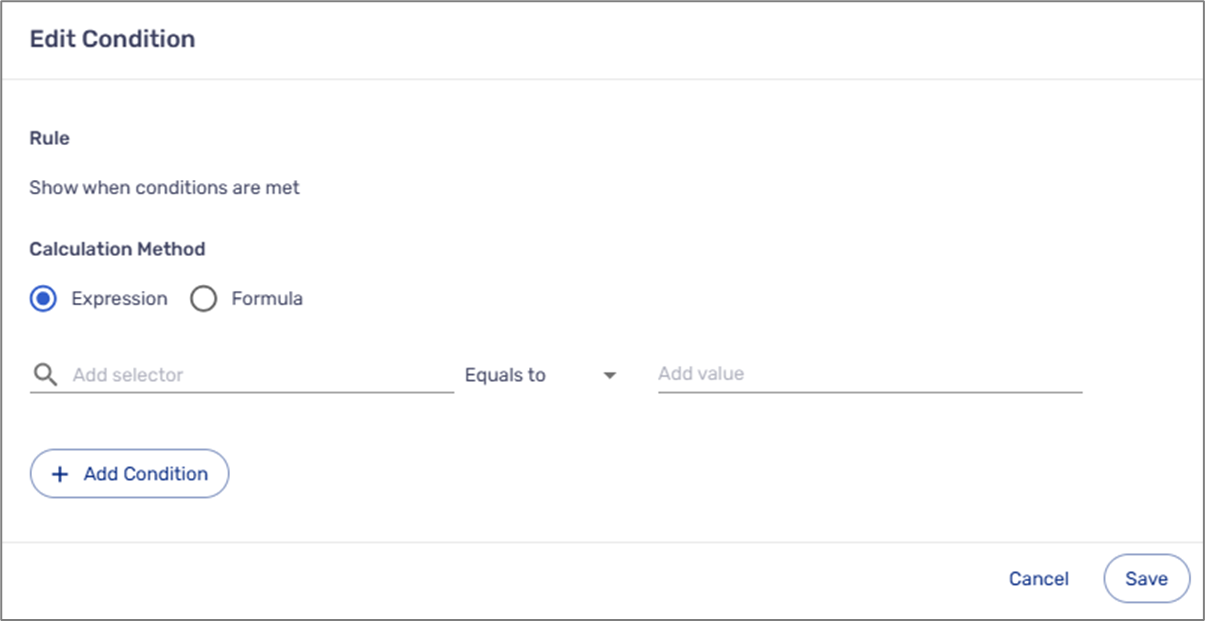
Figure 2: Edit Condition Window
- Edit the condition as required.
- Repeat steps 1 to 3 for any other PDF as needed.