Article Overview
The article describes how to access the Journey Launcher, its structure, and how to use it.
How To Access
(See Figure 1)
To access the Journey Launcher, click the Operate tab (1).
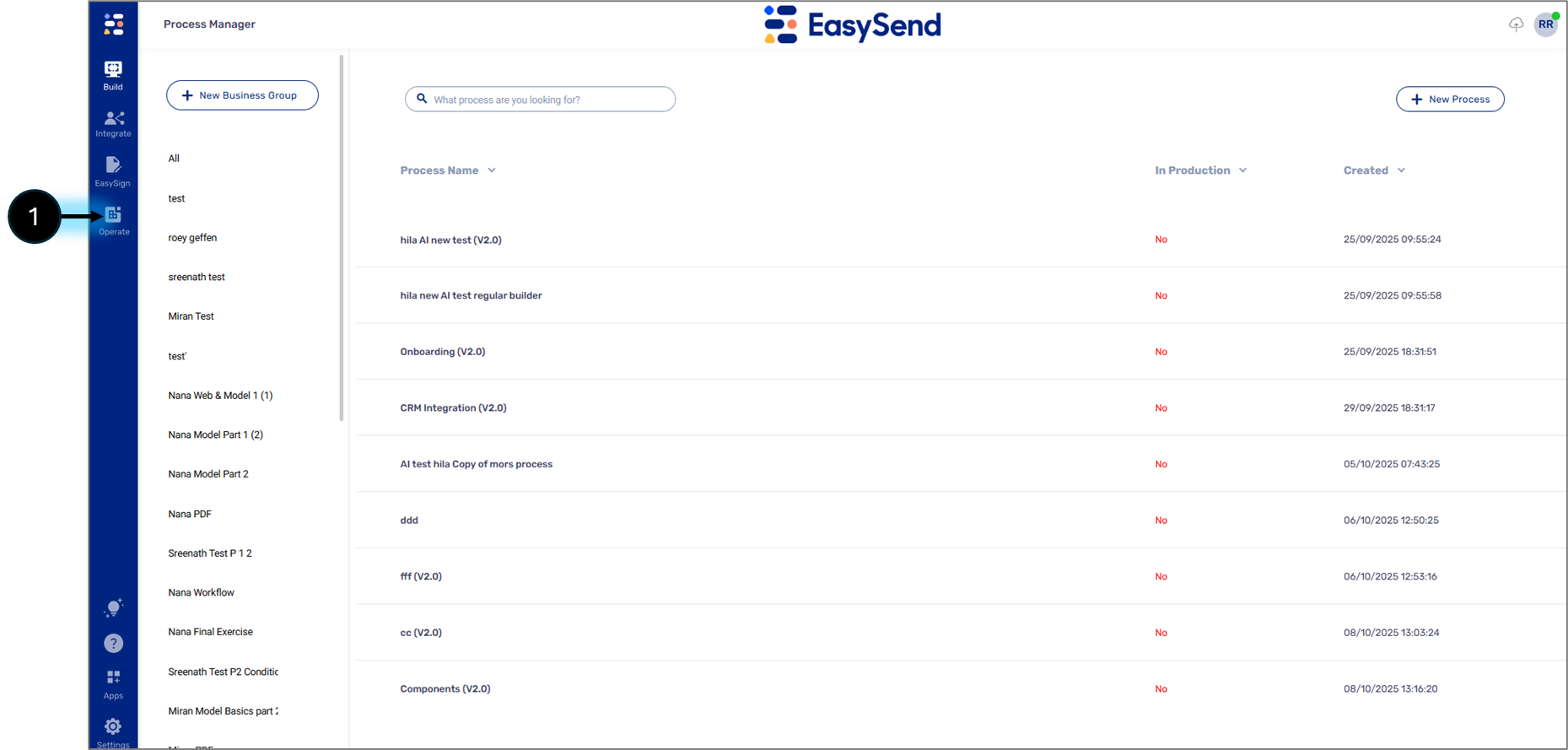
Figure 1: Operate Tab
Journey Launcher Structure
(See Figure 2)
The Journey Launcher is divided into three main sections:
- Process & Server Selection
- Email Setup
- SMS Setup
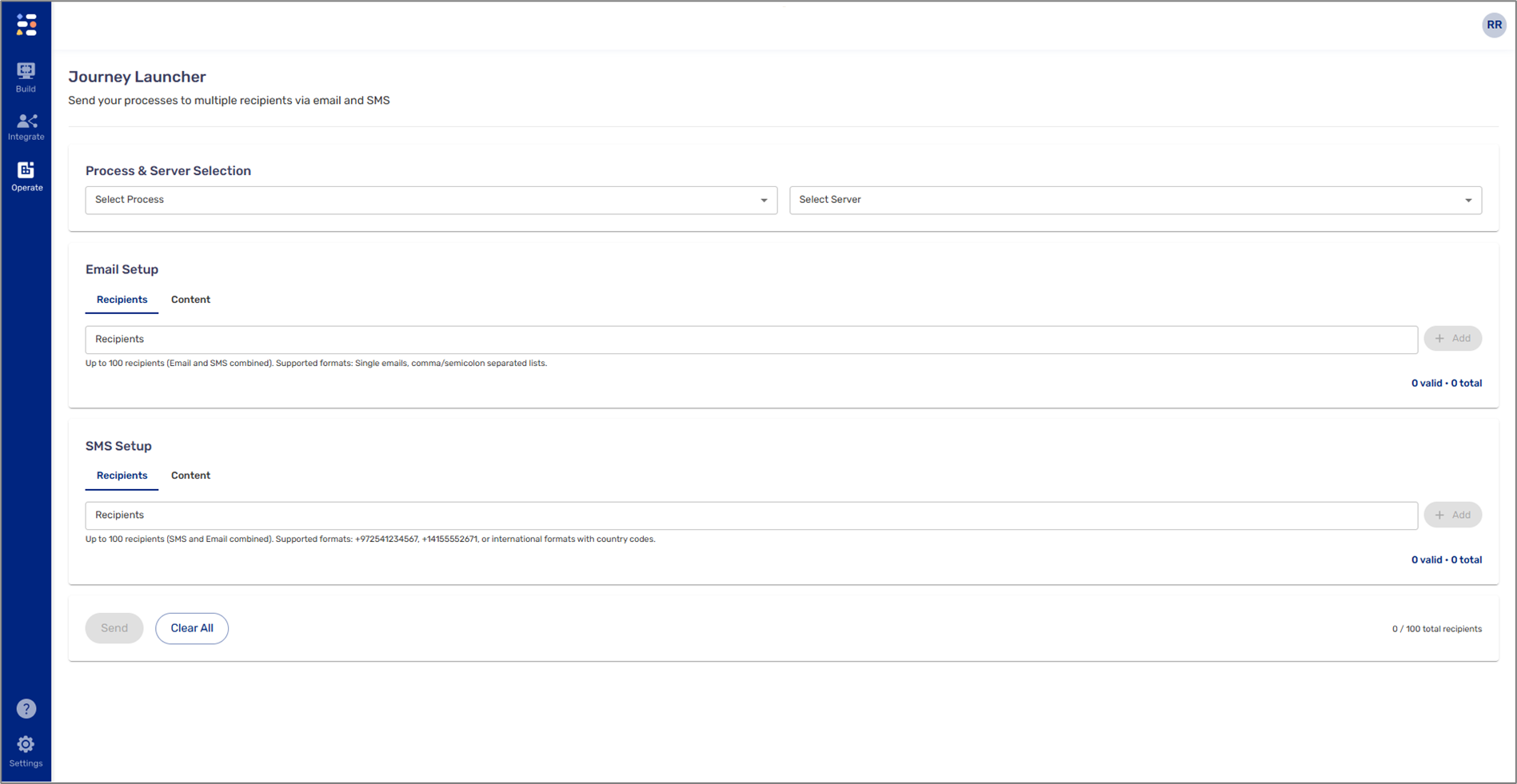
Figure 2: Journey Launcher Structure
Process & Server Selection
(See Figure 3)
This section allows you to choose which process to launch and the server on which it is deployed.

Figure 3: Process & Server Selection
Email Setup
(See Figure 4 to Figure 6)
This section allows you to add the recipients and edit the content of the email. Recipients can be added manually or by pasting a list. The email content must contain a link to the process.

Figure 4: Email Setup
To get the process's link, deploy it from the Webflow. Once the deployment is complete, copy it (1).
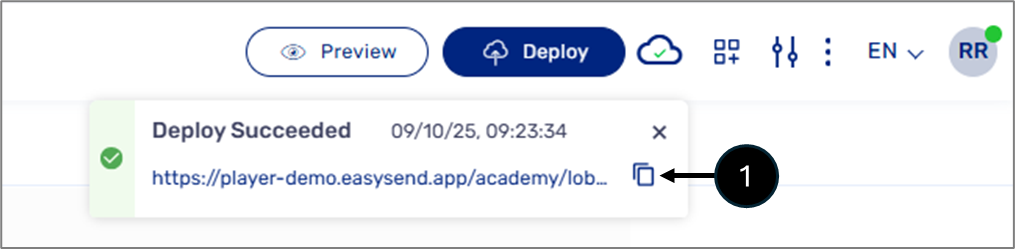
Figure 5: Copy Process Link
On the Journey Launcher, edit the content of the email and paste the link of the process instead of the [PROCESS_LINK], for example:
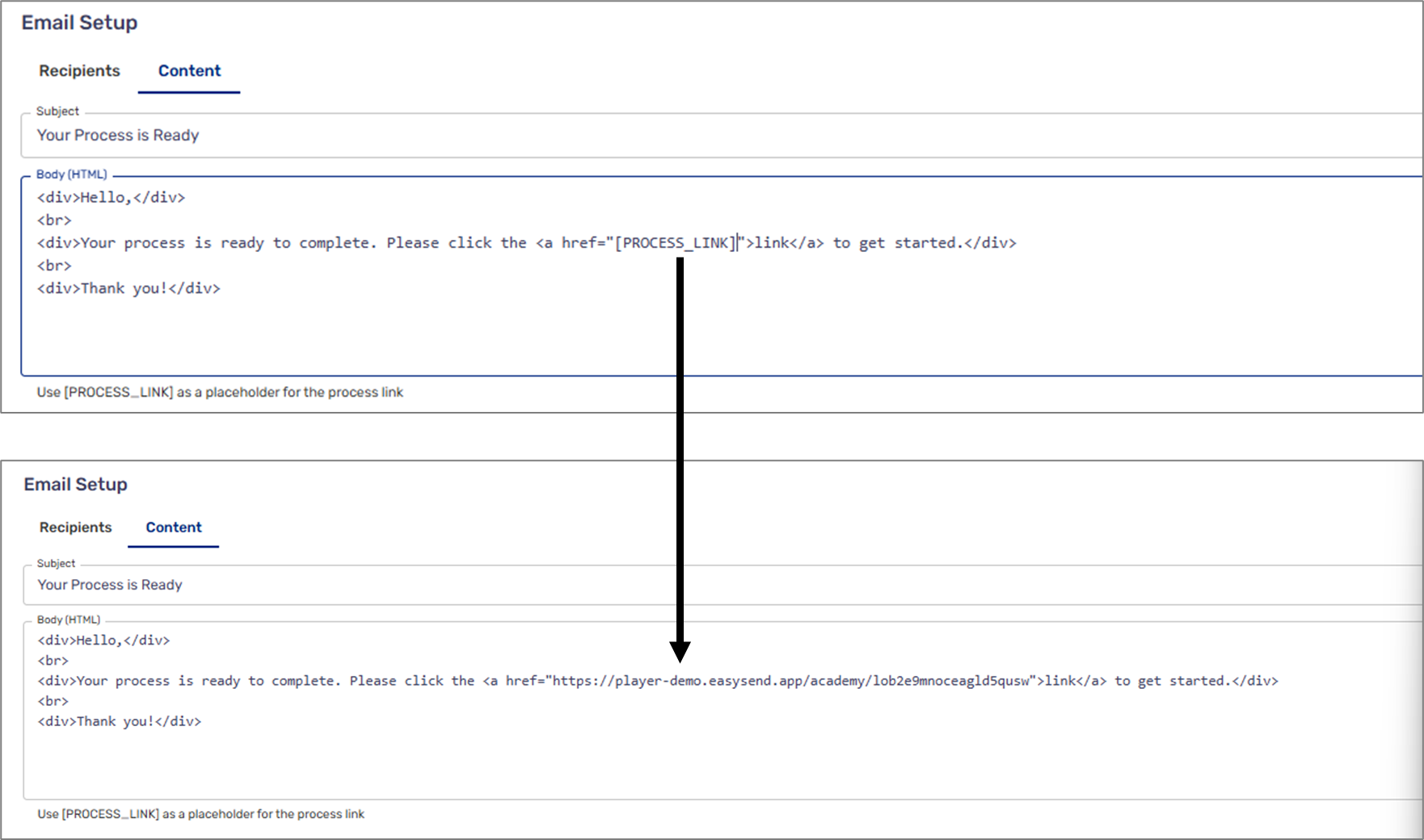
Figure 6: Process Link in Email Content
SMS Setup
(See Figure 7 to Figure 9)
This section allows you to add the recipients and edit the content of the SMS. Recipients can be added manually or by pasting a list. The SMS content must contain a link to the process.

Figure 7: SMS Setup
To get the process's link, deploy it from the Webflow. Once the deployment is complete, copy it (1).
Figure 8: Copy Process Link
On the Journey Launcher, edit the content of the SMS and paste the link of the process instead of the [PROCESS_LINK], for example:
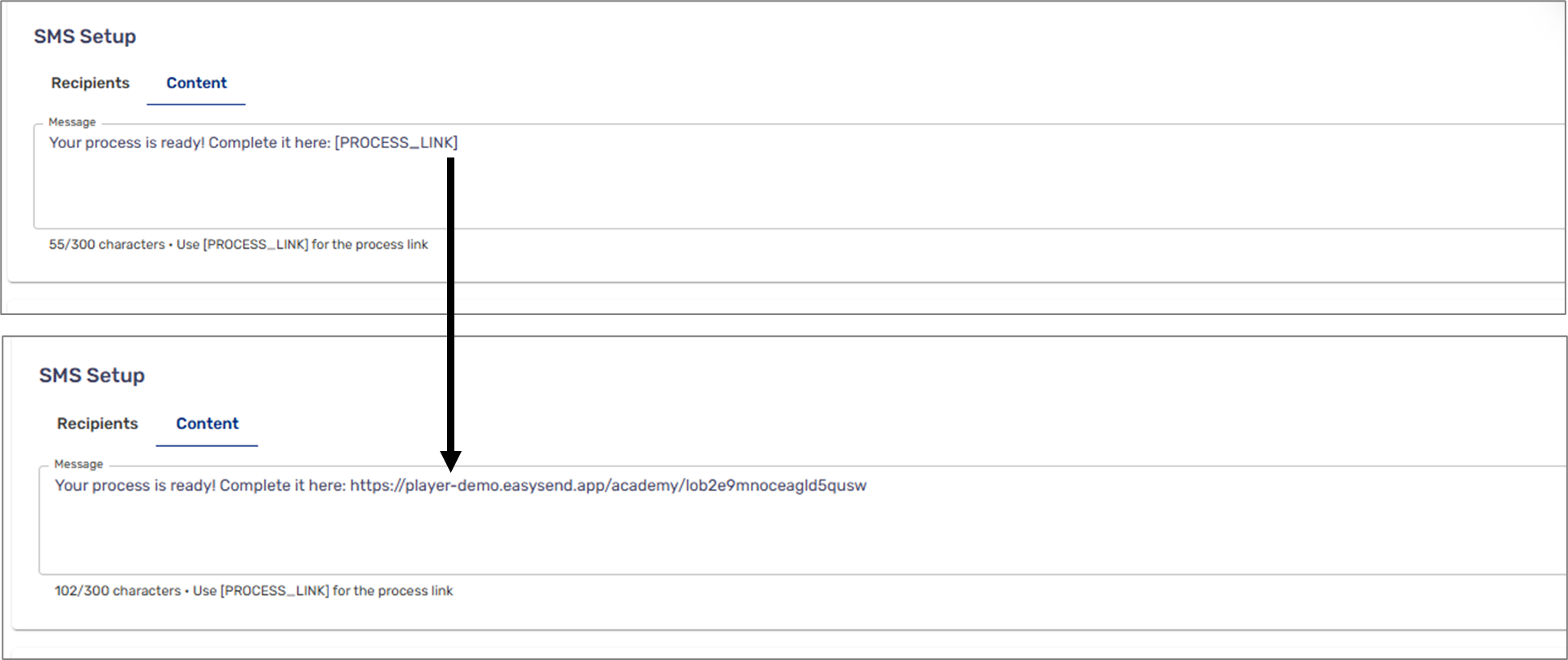
Figure 9: Process Link in SMS Content
Using the Journey Launcher
To use the Journey Launcher, perform the following steps:
- Select the desired process and server
- Add recipients - email, SMS, or both
- Edit the content of the email/SMS - do not forget to include the link to the process
- Click Send Journey.