Article Overview
The following article describes how to create a new monday item from an EasySend journey.
Step 1: Building the Process
- Drag and drop all the required components.
- Build the business logic (conditions and validations).
Step 2: Integrate your monday Environment with the Process
- Verify your EasySend monday app is configured as described in the EasySend App Configuration article.
- Connect your monday resources as described in the Connecting Your monday Resources article.
- Add all the required monday columns as described in the monday Columns article.
- Deploy and preview the journey.
Step 3: Map the Journey Steps Using the Workflow
(See Figure 1 and Figure 2)
- Add all the building blocks and connect them, for example:
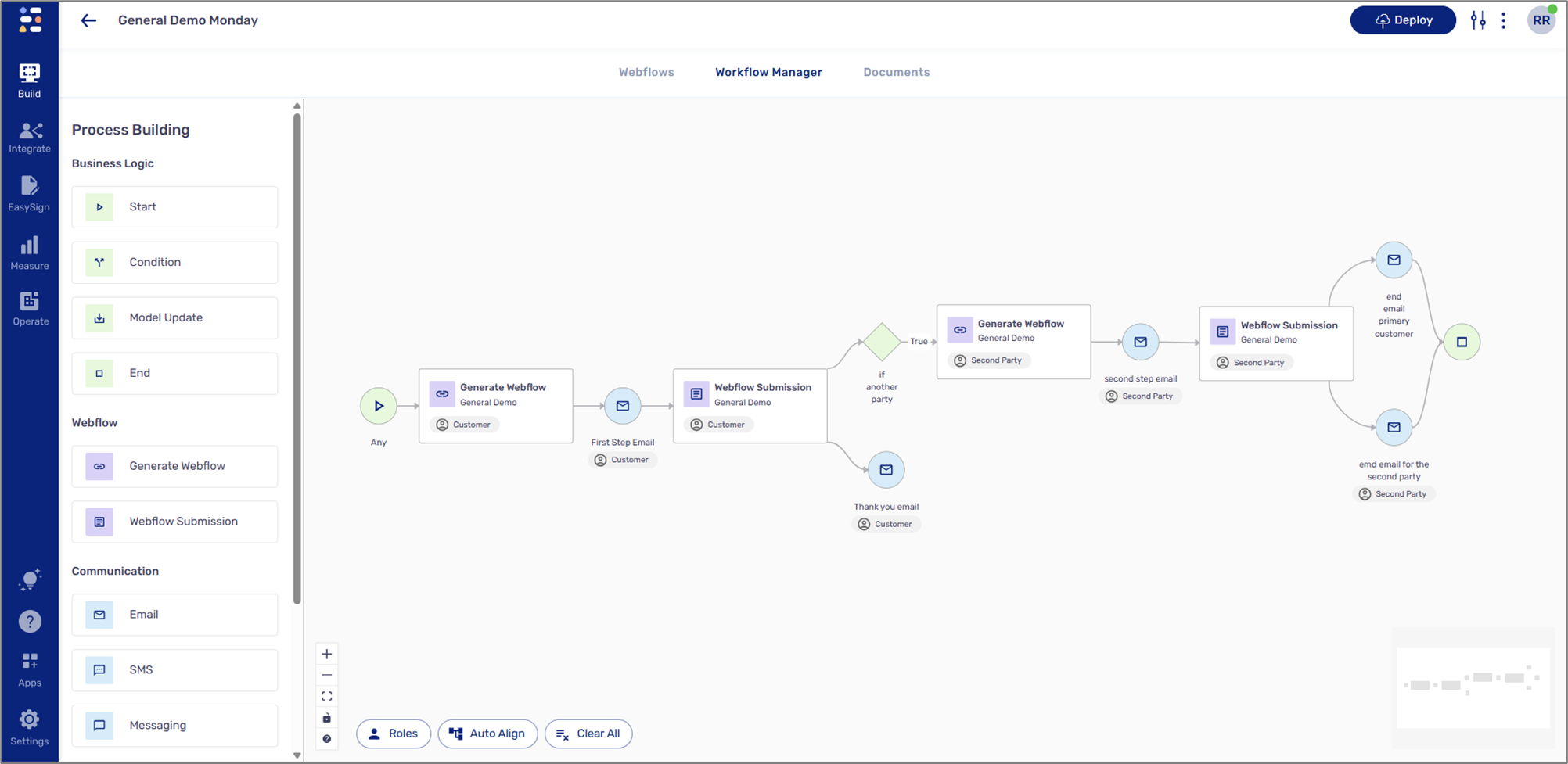
Figure 2: Building Blocks
- Configure the Communication building block, Email or SMS (the one connected between the Generate Webflow building block and the Webflow Submission building block):
- Add the following recipeint - metadata.monday.triggerEmail or metadata.monday.triggerPhone.
- Add the journey's link to the Message Body.
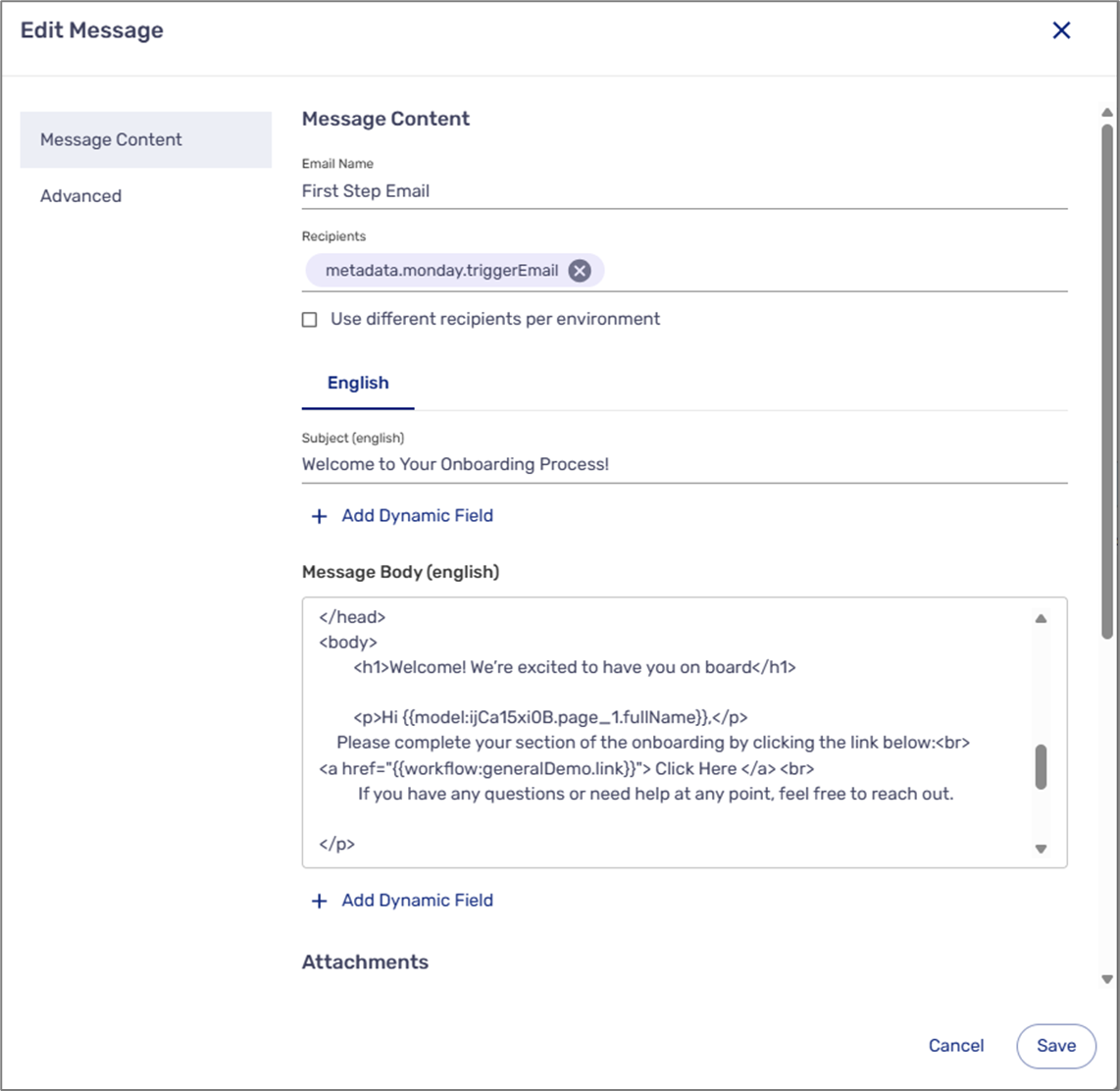
Figure 2: Edit Message Example
Step 4: Interact with the Journey
(See Figure 3 and Figure 4)
As users interact with the journey, even before submission, the monday board will create a new item with the input information. For example:
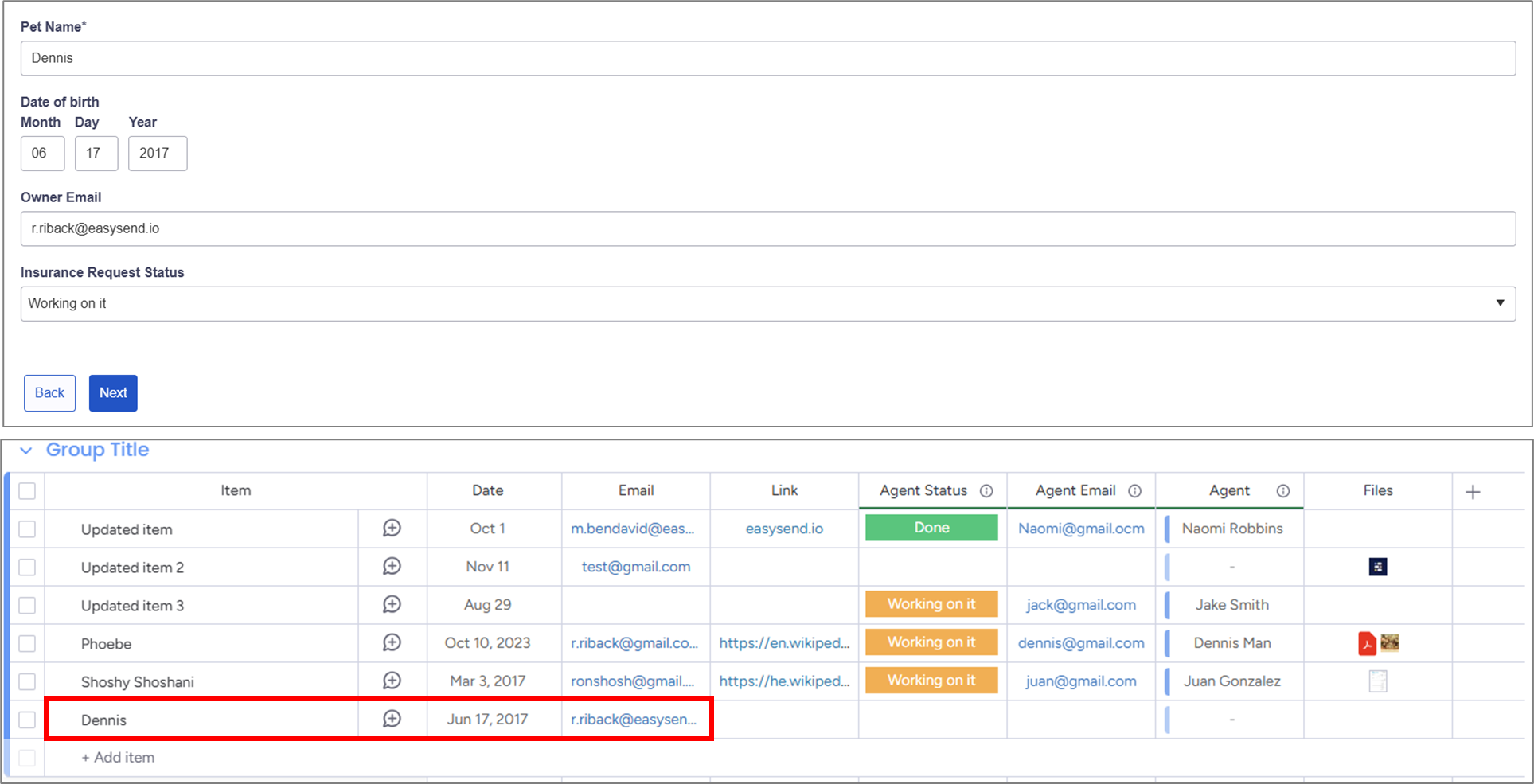
Figure 3: Creating a New Item
Files, however, will only appear after submission, for example:
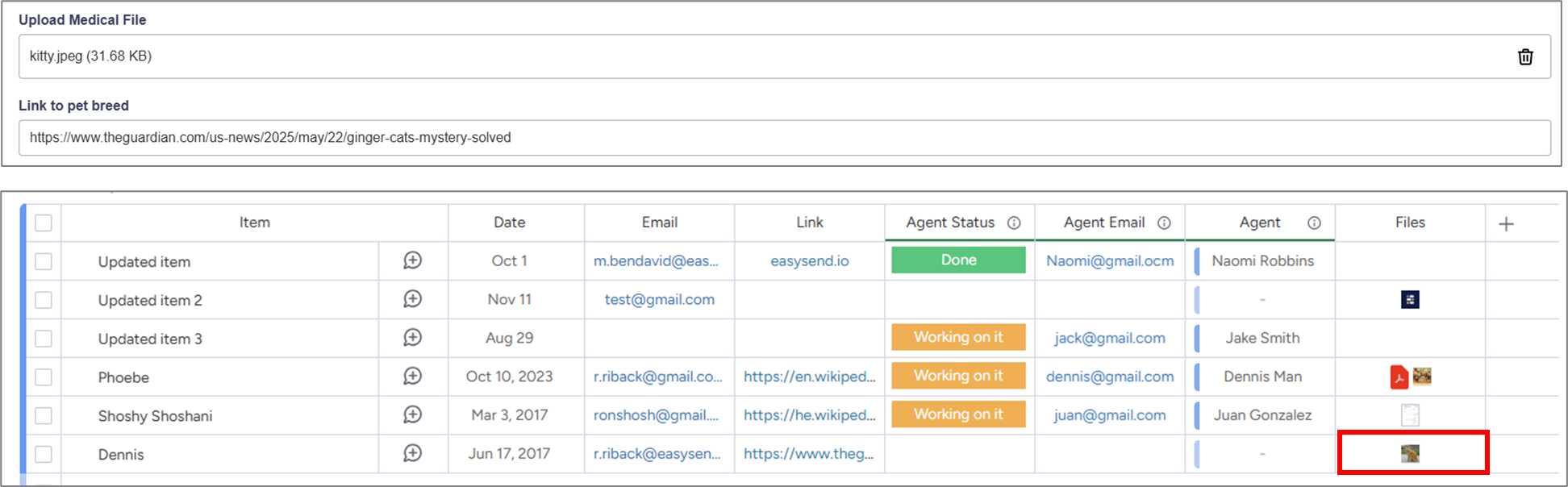
Figure 4: File Added After Submission
NOTE
- Allowed file types {".jpeg", ".jpg", ".pdf", ".docx", ".xlsx", ".gif", ".mp4", ".csv", ".svg", ".txt", ".ai"}
- Size <500MB