Article Overview
The following article describes EasySend's security logs mechanism.
What are EasySend's Security Logs?
An EasySend security log is a record of security-related events and activities that occur within the lifecycle of digital processes or EasySign documents. EasySend allows its customers to send security logs to their internal Traditional security information and event management (SIEM) systems.
NOTE
Please note that the configuration of your security logs mechanism is done internally by EasySend. For additional information, please contact our support team.
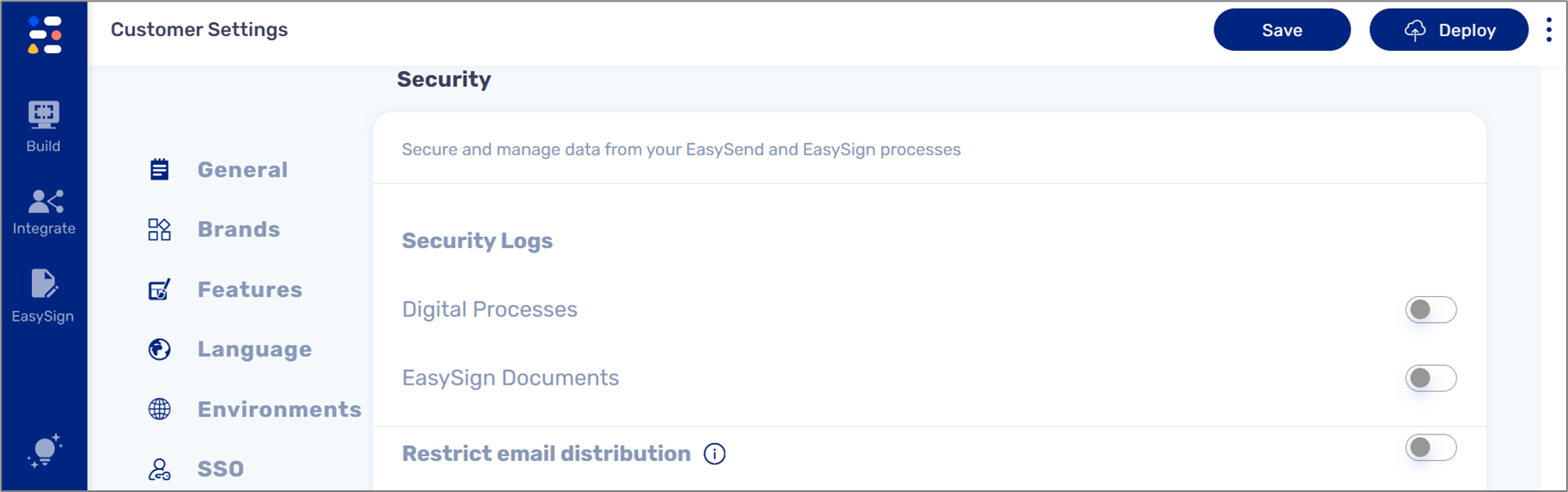
Security Logs Configuration
(See Figure 1 and Figure 2)
Security logs can be enabled for digital processes and/or EasySign documents.
Figure 1: Security Logs
Once the switch is toggled to on, the following options appear:
- Select Service dropdown - this dropdown contains a list of services, the selected service will be the one configured to send the security log. A security log can be sent in one of the following service steps:
- Rest API
- File storage
- Encode/decode
NOTE
Because the security logs are sent through a service, it is possible to configure a different log per environment (DEV/PROD).
- Events dropdown - this dropdown contains a list of security events to include in the log:
- All Events
- Link Sent
- Link Opened
- Completed Step
- Data Submitted
- Completed
- Authentication - this event includes One Time Password (OTP) events such as:
- OTP sent
- OTP resent
- OTP passed
- OTP failed
- Session blocked
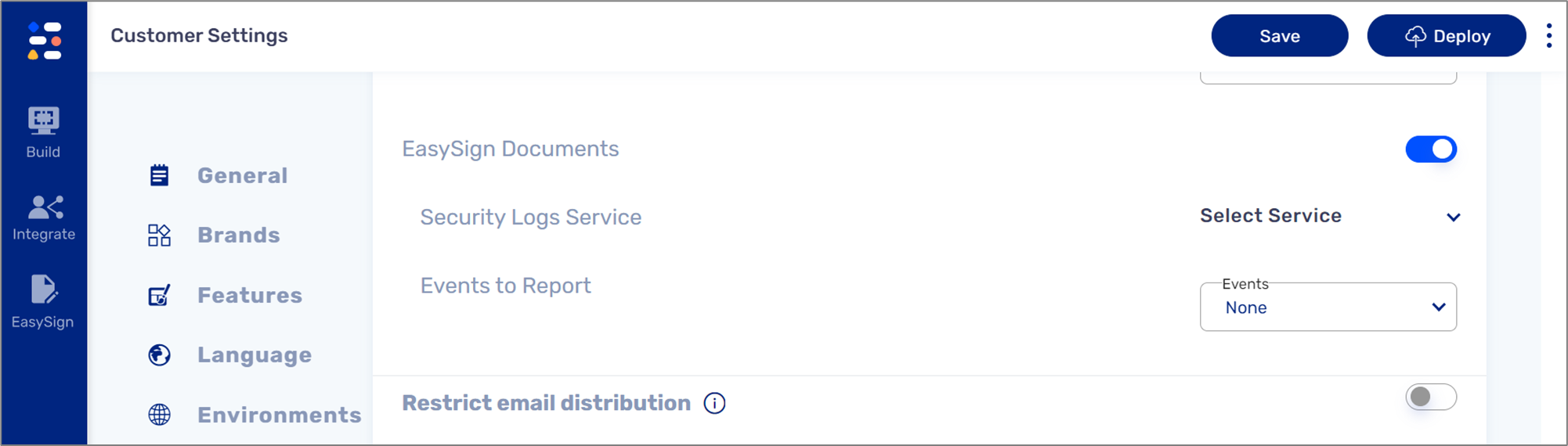
Figure 2: Configuring Security Logs
Security Log Structure
The following is an example of a JSON for a log of an event:
{
    "@timestamp": "2024-11-20T10:37:42.943305",
    "client": {
        "ip": "::1"
    },
    "ecs": {
        "version": "8.11"
    },
    "event": {
        "action": "OPENED",
        "timezone": "localhost"
    },
    "geo": {
        "country_name": "localhost",
        "region_name": "localhost"
    },
    "label": {
        "app_type": "digitalJourney",
        "auth_action": null,
        "auth_page": null,
        "authentication_method": null,
        "authentication_status": null,
        "business_group": "Integration Team",
        "business_group_id": "lVC4f0Ebz9JwrHLUr4YK",
        "customer_id": "easysend-rnd",
        "deploy_timestamp": "2024-11-20T09:44:51.729859",
        "is_co_browsing_on": true,
        "master_rid": "EOBxZR0U6yg",
        "page_analytics_id": "4ecc8d8a-d798-444f-ad48-ef77d4c959d1",
        "page_index": 0,
        "page_name": "page0",
        "player_version": "30.7.11",
        "process_id": "ERdleNrQkKfq7vnOkMRc",
        "process_multi_language": "en",
        "request_id": null,
        "rid": "JAmCWofysTU",
        "role": "Customer",
        "source_type": "link",
        "source_value": "direct",
        "step_id": "23a81e9e-90ee-4bc7-be26-4466e155c8c6",
        "step_index": 0,
        "web_flow_name": "eyal-test-new",
        "webflow_id": "iwha6jbbalxrnqjz89bk"
    },
    "organization": {
        "name": "Easysend"
    },
    "os": {
        "family": "macOS",
        "full": "macOS 10.15 Catalina"
    },
    "service": {
        "environment": "LOCAL"
    },
    "url": {
        "domain": "http://localhost:4200",
        "full": "http://localhost:4200/easysend-rnd/iwha6jbbalxrnqjz89bk/page0/0?rid=JAmCWofysTU"
    },
    "user_agent": {
        "device": {
            "name": "desktop"
        },
        "name": "Chrome",
        "original": "Mozilla
        "os": {
            "browser_language": "en-US",
            "browser_platform": "MacIntel",
            "is_mobile_device": false,
            "is_verified_bot": false
        }
    }
}