Article Overview
The following article describes the steps to install the EasySend Application (App) in your Salesforce environment.
EasySend App Installation
(See Figure 1 to Figure 5)
To install the EasySend App, perform the following steps:
- Sign in to Salesforce.
NOTE
a user with administrative privileges is required.
- Go to Salesforce AppExchange.
NOTE
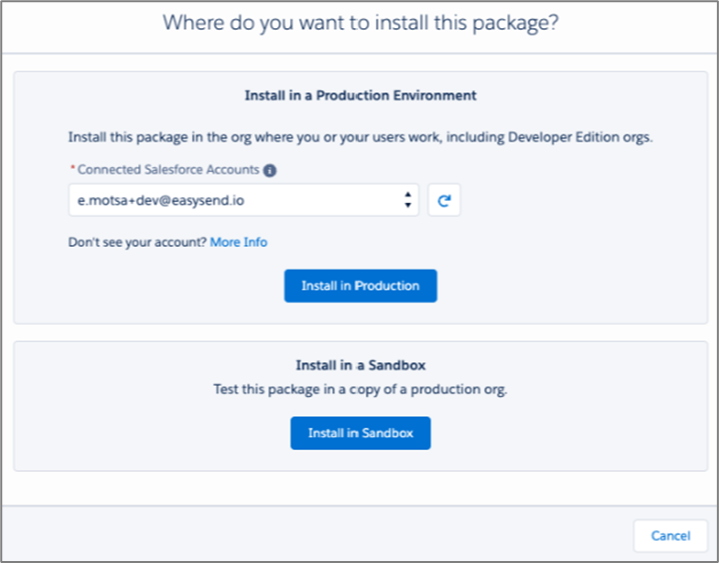
- If the following window appears, select a connected Salesforce account:
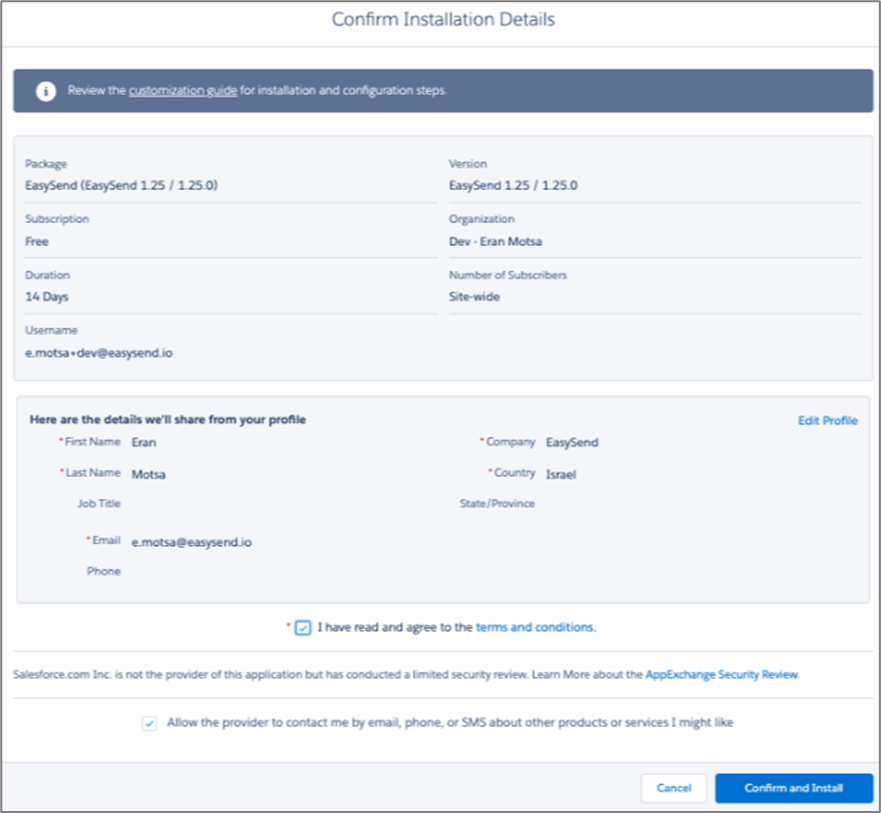
- If the following window appears, agree to the terms and conditions and confirm to proceed with the installation:
- Choose for whom this App should be installed. If you do not have a preference please select Install for All Users (1) and click Install (2).
.PNG)
Figure 1: EasySend Installation
Result:
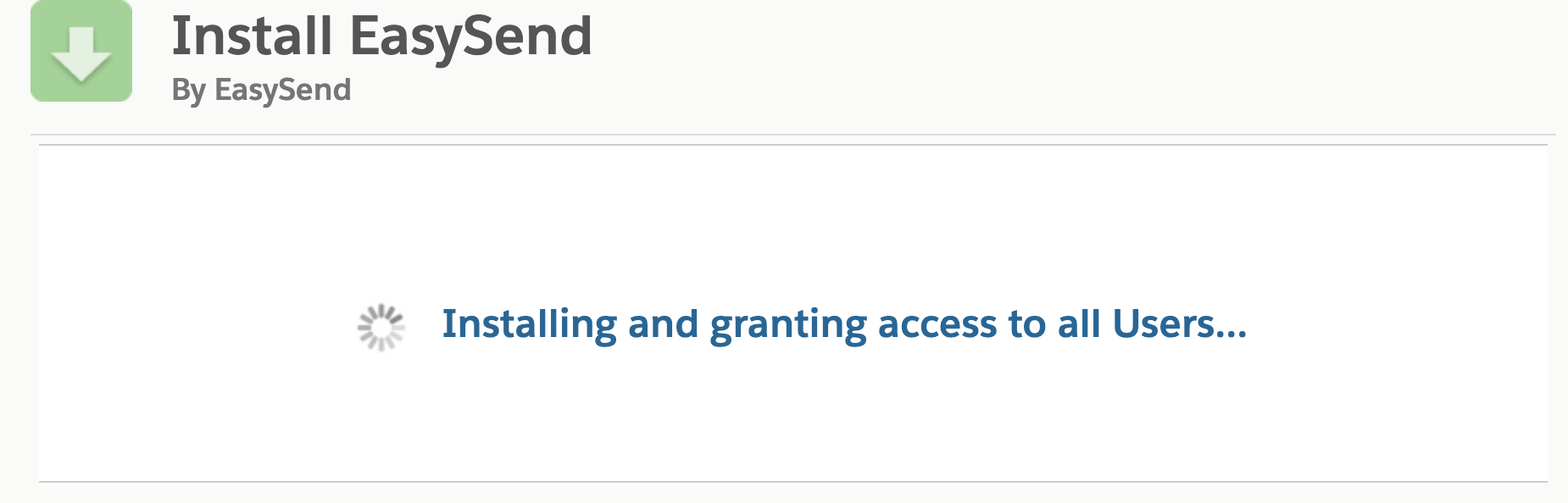
Salesforce installs EasySend:
NOTE
The installation may take a few minutes.
If the following message appears (see Figure 3), check that you received a confirmation email (see Figure 4), and then click Done (1) to access the Installed Packages page (see Figure 5).
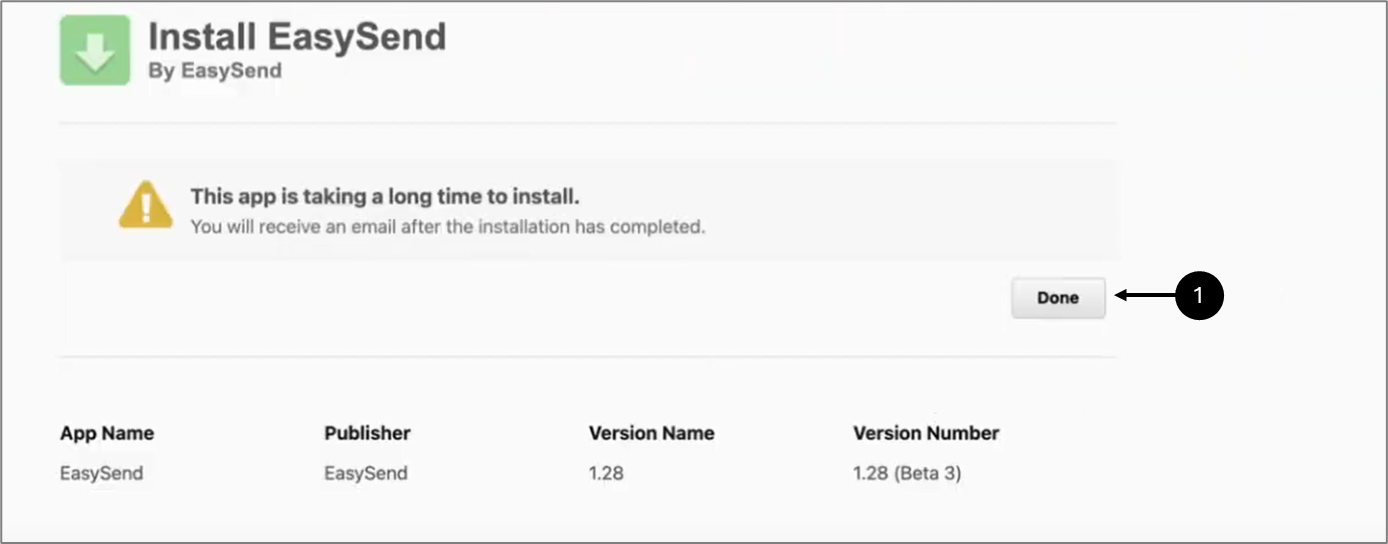
Figure 3: Installation Message
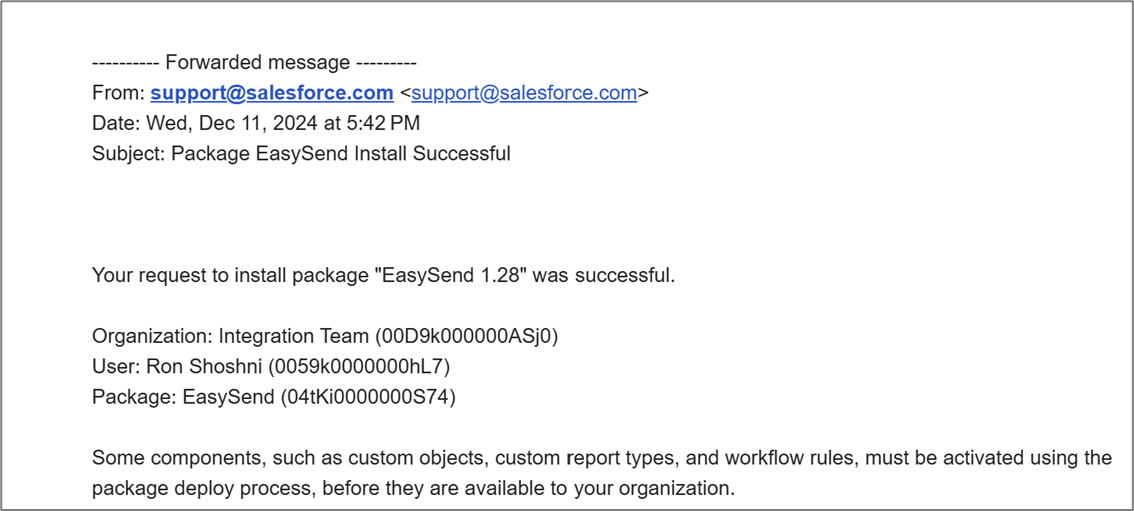
Figure 4: Installation Email
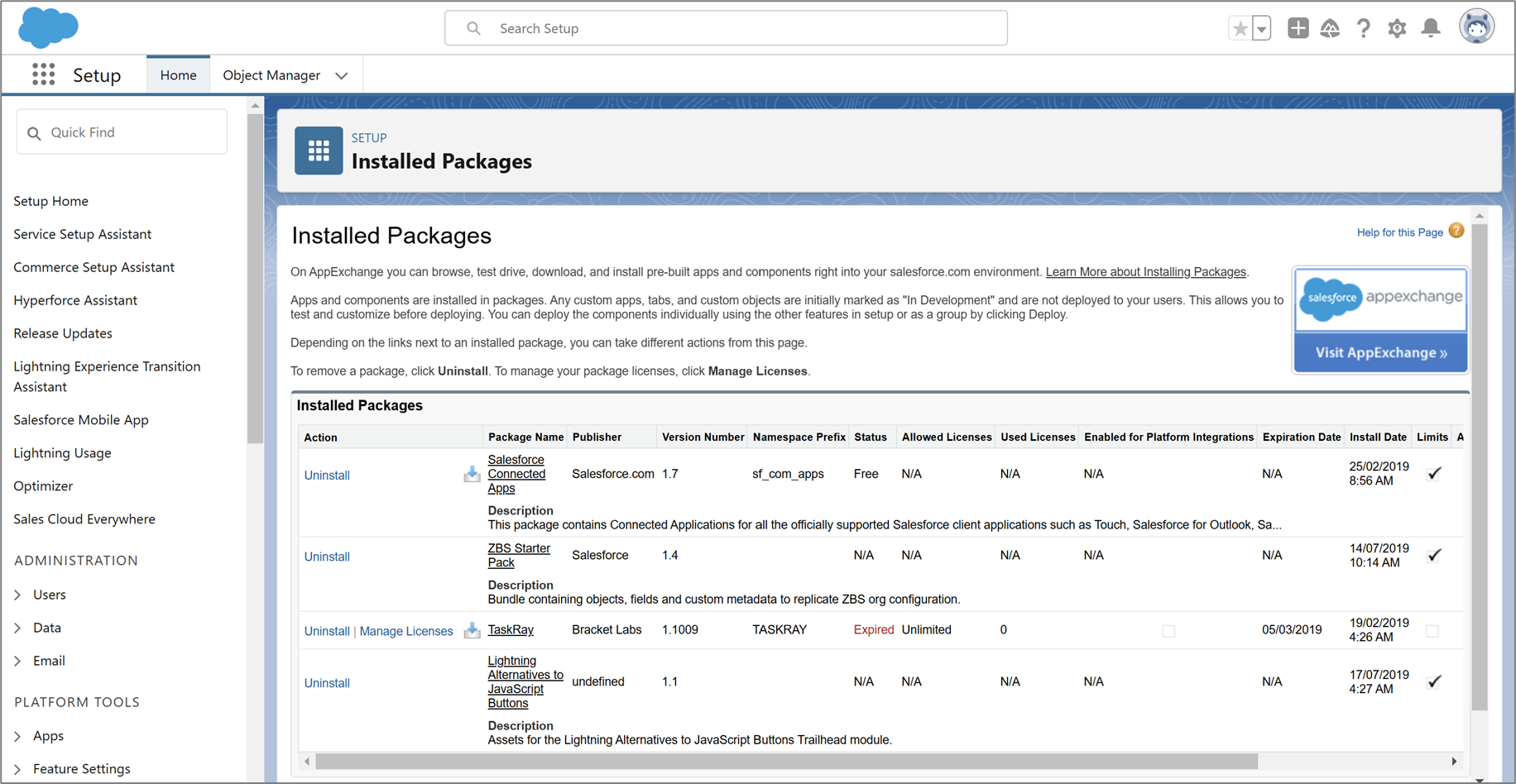
Figure 5: Installed Packages Page