Overview
The following article describes the Multi-Theme feature and how to create it.
Multi-Theme in Journeys
The ability to apply different themes to the same journey.
Business Value
Multi-brand support without duplicating infrastructure
Many organizations operate several brands under one corporate umbrella, for example, a parent insurer with regional or product-line sub-brands. Multi-theming lets one underlying digital process serve all of them, same logic, same backend, same maintenance burden, while each brand's customers see their own look and feel. Without this, the organization would need to build and maintain separate journeys per brand.
Channel or partner-specific branding
An organization might distribute the same onboarding form through its own website, through a partner/broker, or through an affiliate. The multi-theme feature lets each distribution channel provide a themed experience that matches the context in which it's embedded, increasing trust and conversion, since customers are wary of forms that look inconsistent with the site they came from.
Theme Selection
Switching between themes is easy and done with a simple selection; no need to update URL variants.
Getting Access
Using the Multi-Theme Feature
(See Figure 1 to Figure 3)
To apply multi-themes on a specific digital process, access the Process Manager screen, toggle the Multi Theme switch (1) to on, and click the dropdown (2) to select an additional theme.
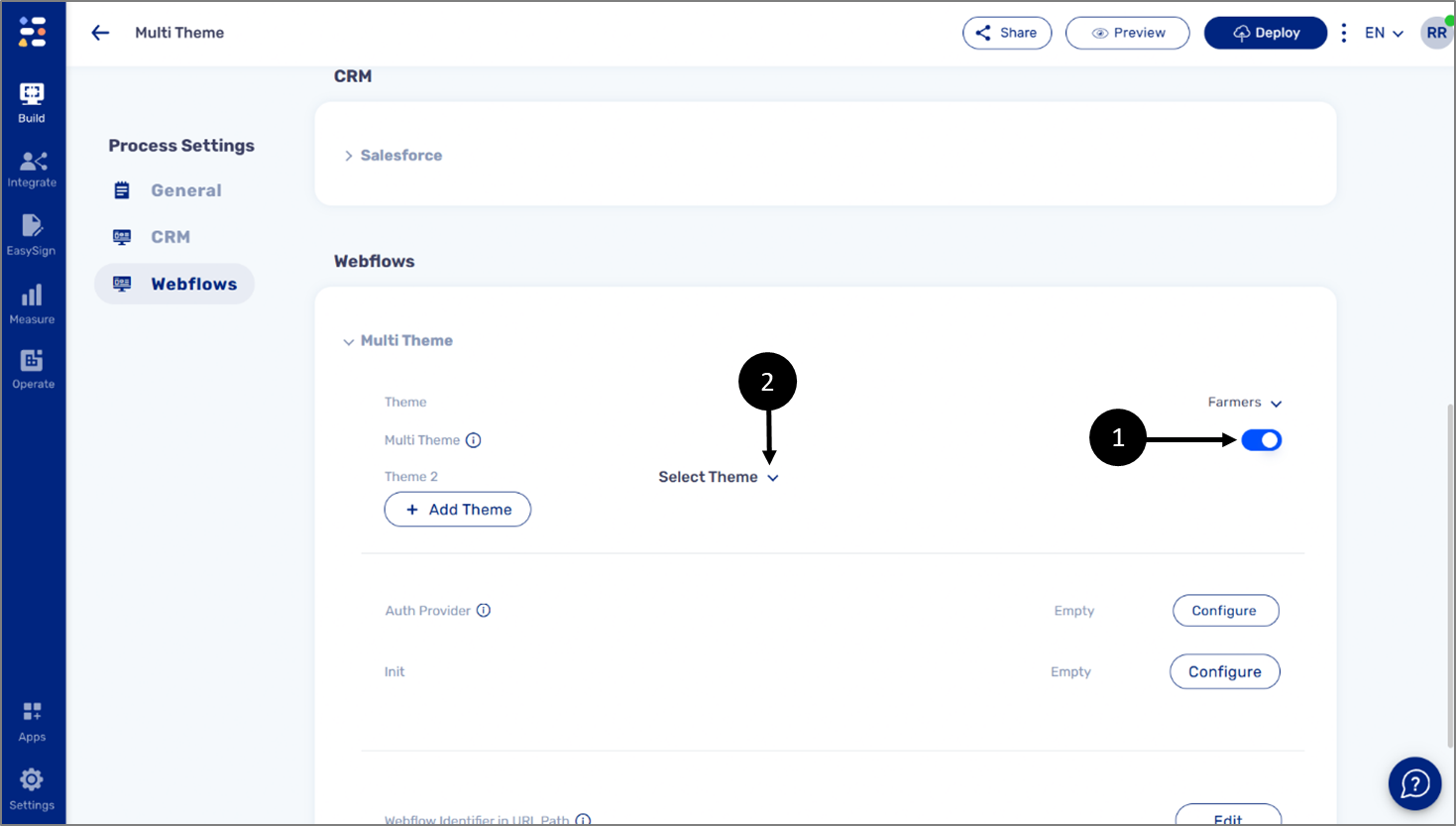
Figure 1: Enabling Multi-Theme
Additional themes can be added by clicking the + Add Theme button (3). Each newly added theme has a unique identifier (4) that can be used in the generate-link API by including the variant field in the payload.
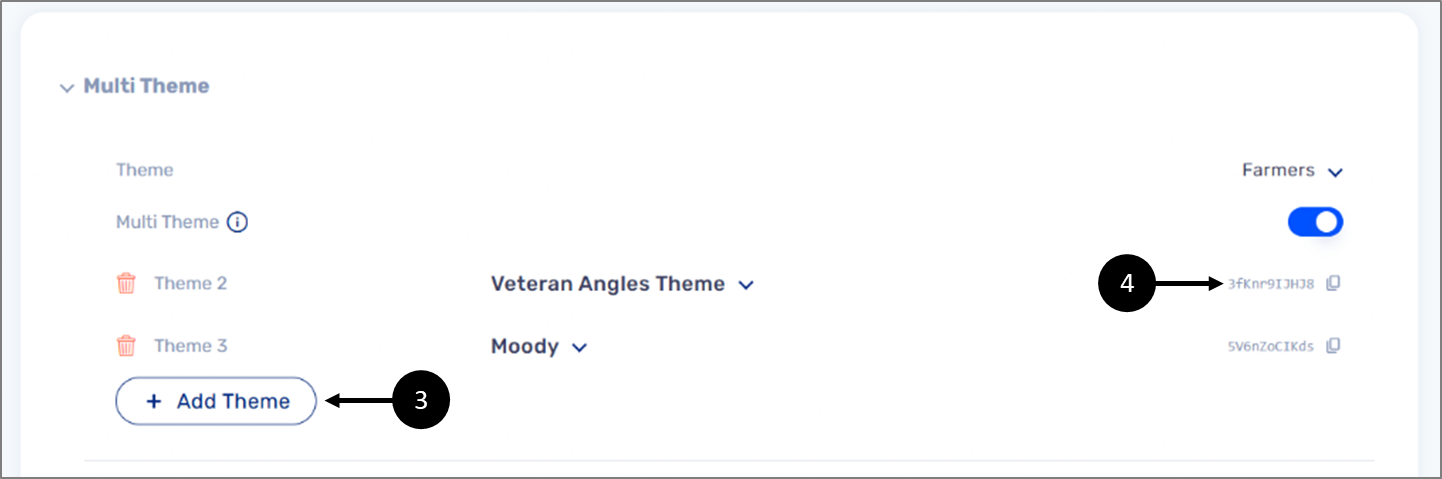
Figure 2: Multi-Themes
On the Webflow Screen, switch between themes by using the dropdown (5). Changes will be visible instantly.
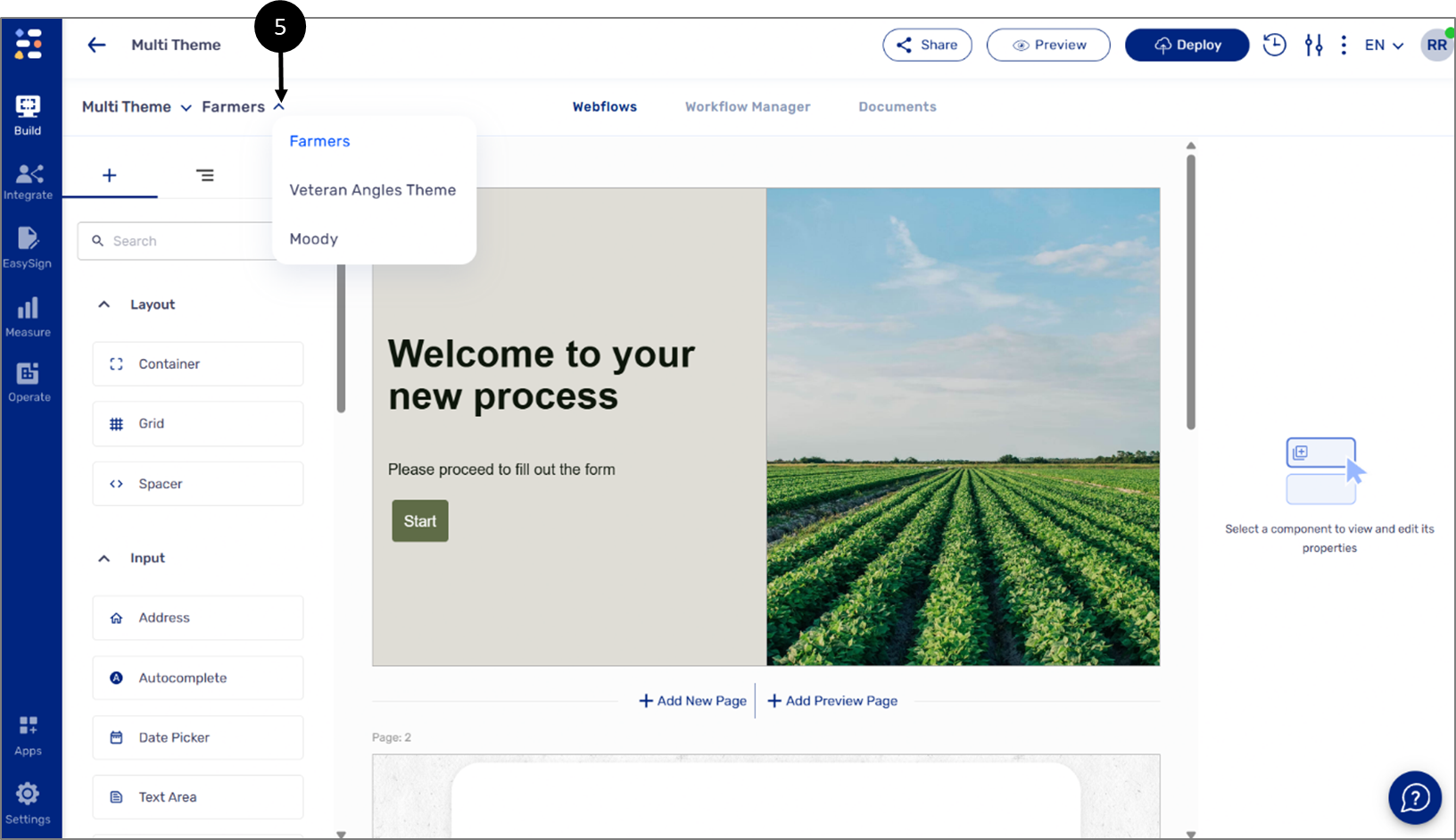
Figure 3: Switching Themes