Article Overview
The following article describes steps to initiate an EasySend process from Salesforce and a use case.
Step 1: Building the Process
- Drag and drop all the required components.
- Build the business logic (conditions and validations).
Step 2: Integrate your Salesforce Environment with the Process
(See Figure 1)
- Connect your Salesforce environment as described in the Connecting Your Salesforce Environment article.
- Add all the required Salesforce fields as described in the Adding Salesforce Fields article.
- If required, detach and map fields as described in the Detaching and Mapping Salesforce Fields article.
- Decide which fields will appear with pre-filled data by checking/unchecking the Pre-fill Data checkbox of each field. For example:
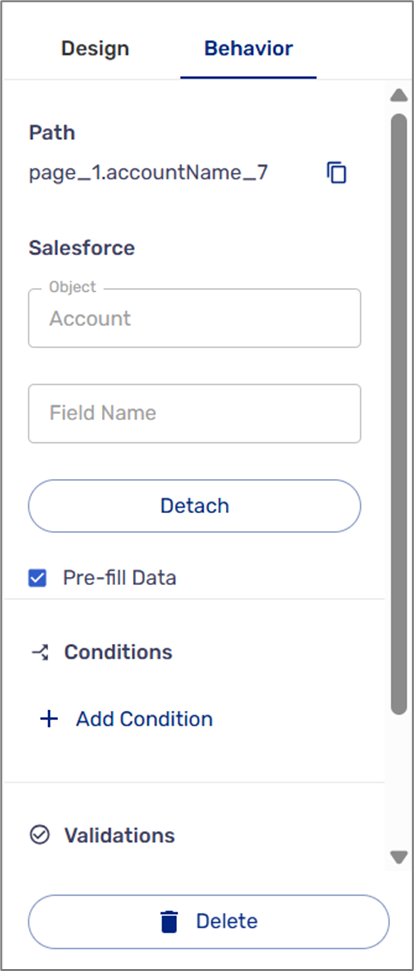
Figure 1: Pre-fill Data Checkbox
- Deploy the process.
Step 3: Map the Journey Steps Using the Workflow
(See Figure 2 and Figure 3)
- Add all the building blocks and connect them, for example:
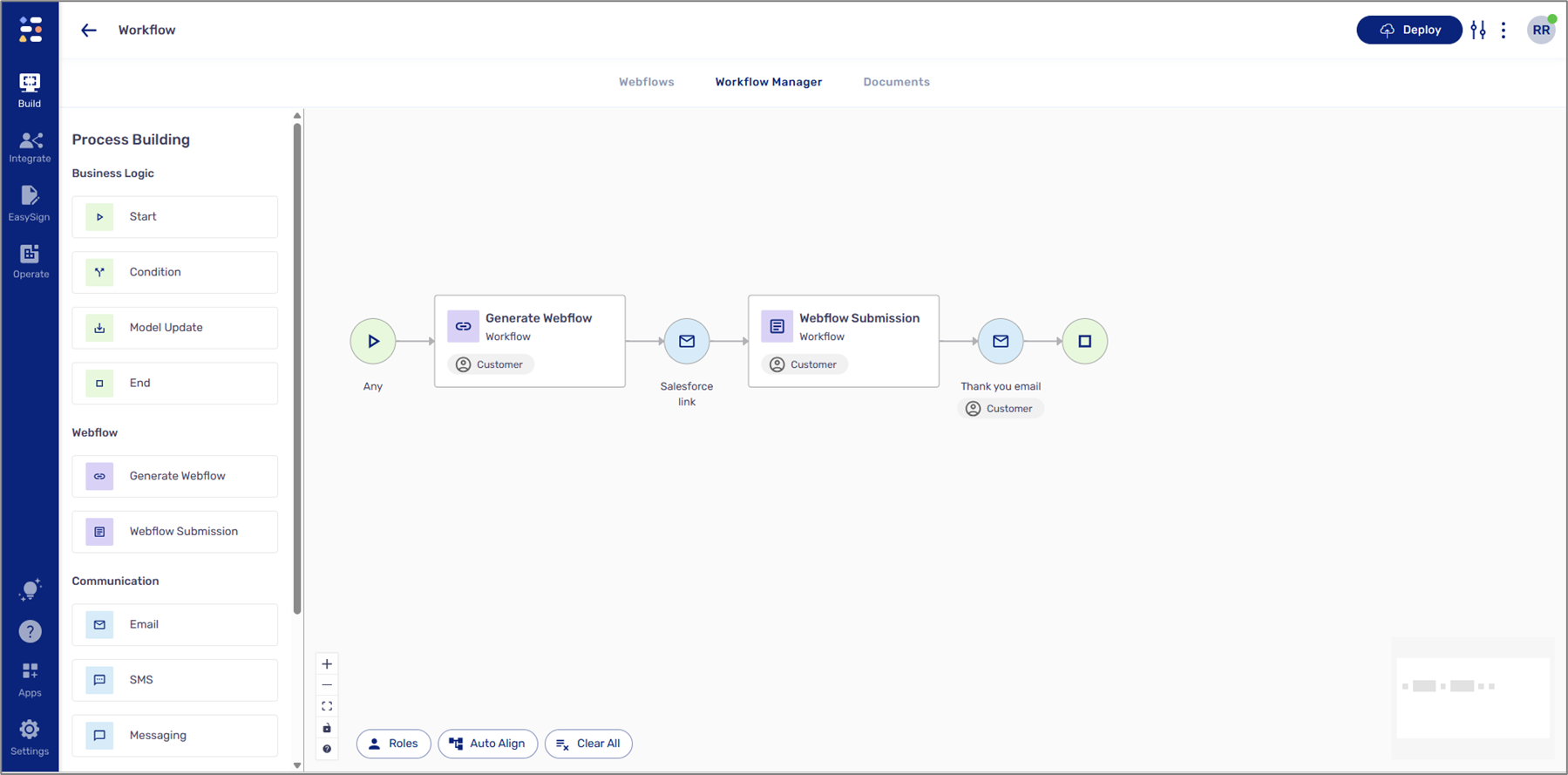
Figure 2: Building Blocks
- Configure the Communication building block, Email or SMS (the one connected between the Generate Webflow building block and the Webflow Submission building block):
- Add the following recipeint - metadata.salesforce.triggerEmail or metadata.salesforce.triggerPhone.
- Add the journey's link to the Message Body.
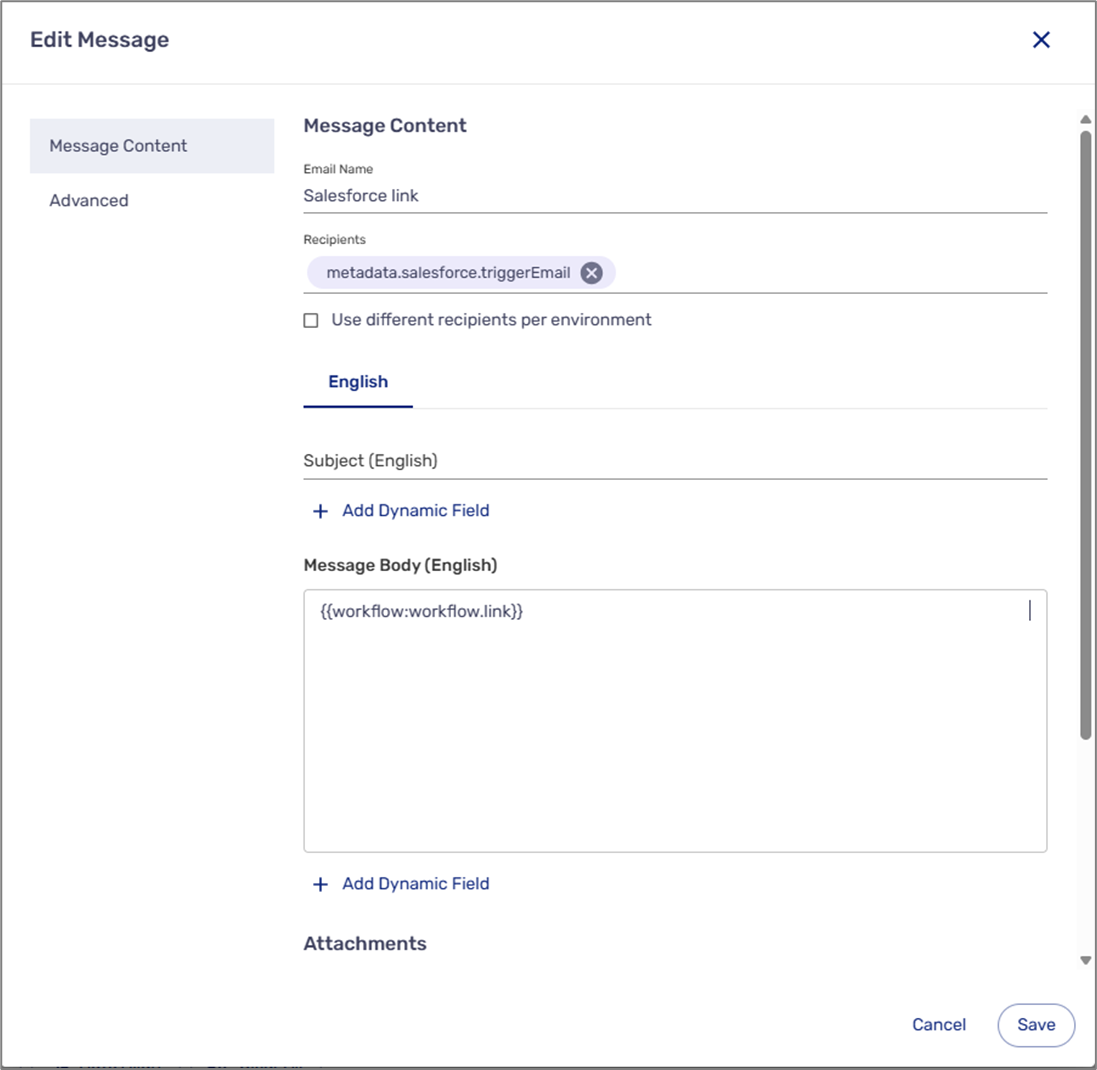
Figure 3: Edit Message Example
Step 4: Initiate the Process from Salesforce
- Access the relevant object in Salesforce.
- Locate the desired item.
- Initiate and send the process from Salesforce.
Step 5: Interact with the Process
- Click the link to access the process.
- Fill out the information.
- Submit the process.
- Navigate back to Salesforce and view the updated data.
Use Case - Update Account Information
(See Figure 4 to Figure 8)
This process is connected to a Salesforce environment and is designed to update account details as stored in Salesforce. The responsible agent initiates the process from Salesforce and sends a link to the account representative for updates. When the process begins, any existing data in Salesforce will be pre-populated in the fields. Upon submission, the updated information is seamlessly integrated back into Salesforce.
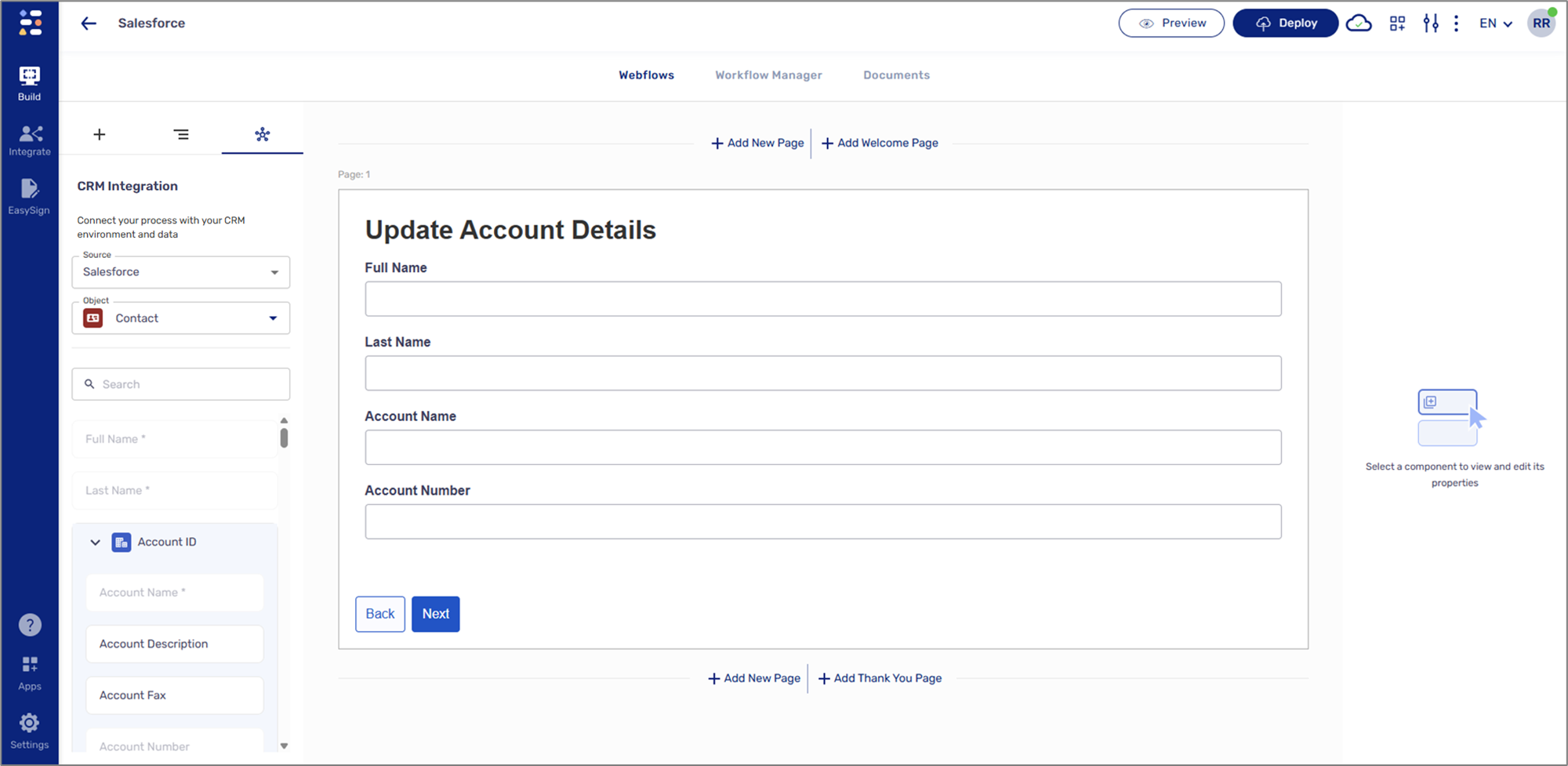
Figure 4: Process
In Salesforce, the account contains details, but some are missing.
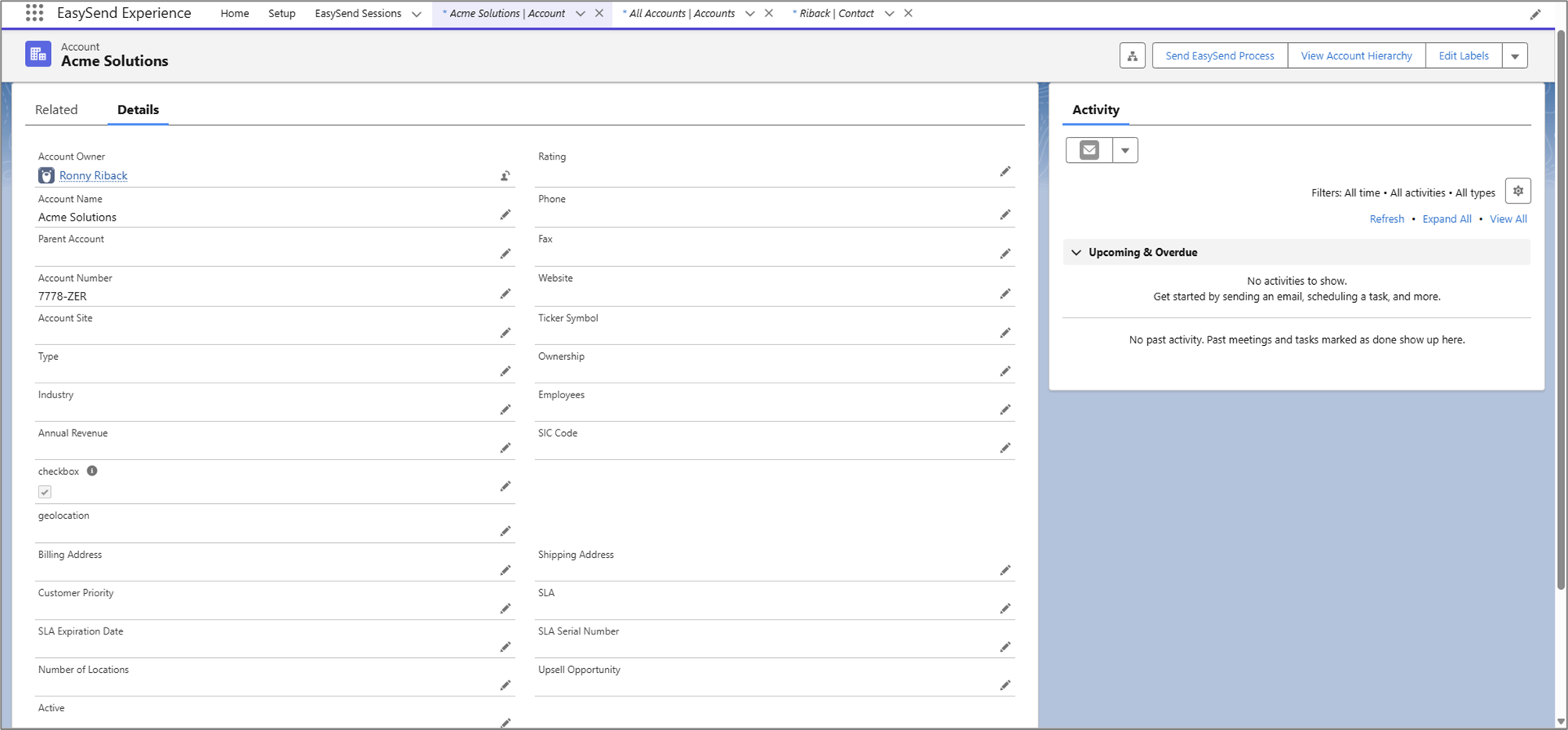
Figure 5: Account
The agent clicks the button to initiate and send the integrated process's link.
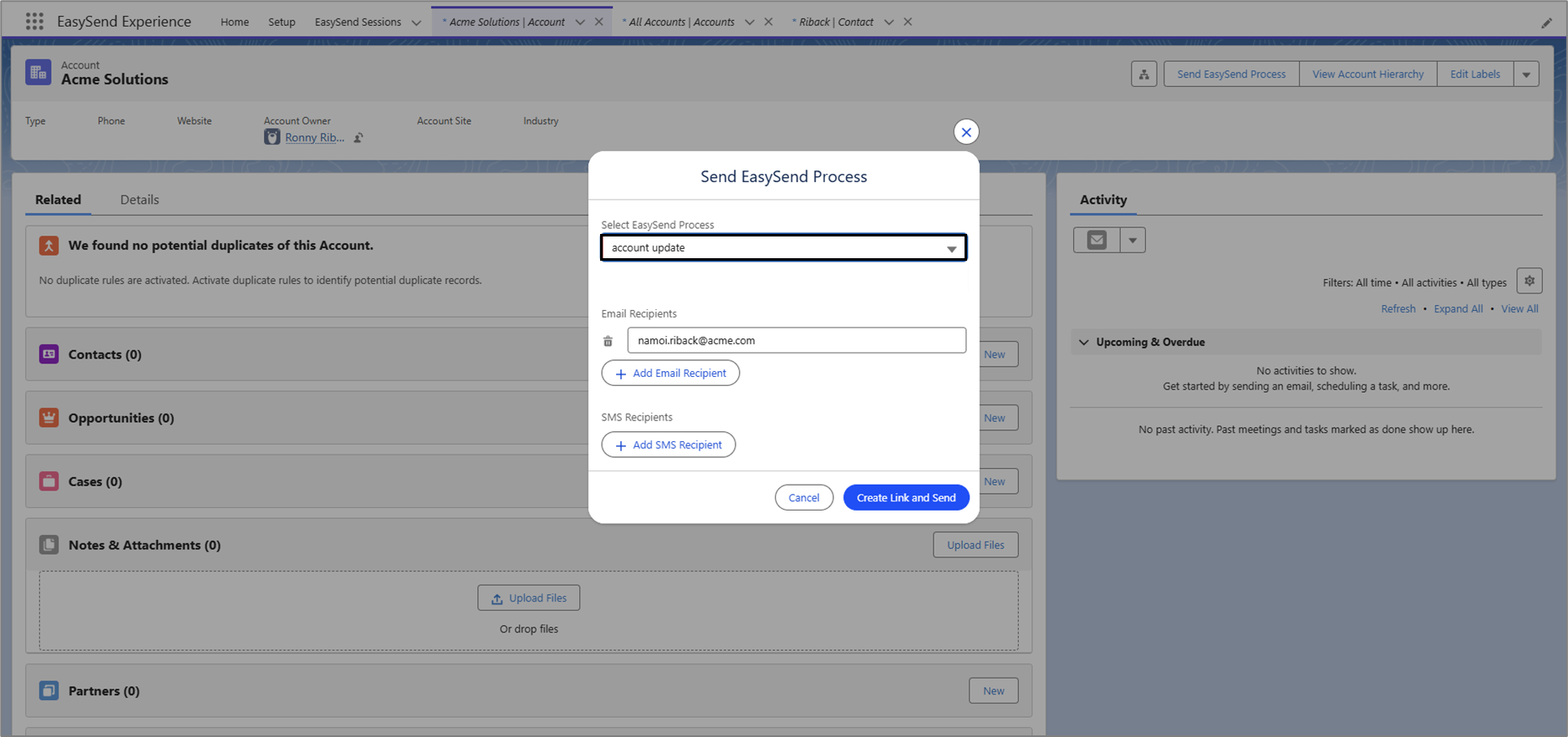
Figure 6: Salesforce - Sending Link
When the link to the process is linked, it appears with some pre-populated information (account name and number). The address and website will be updated.
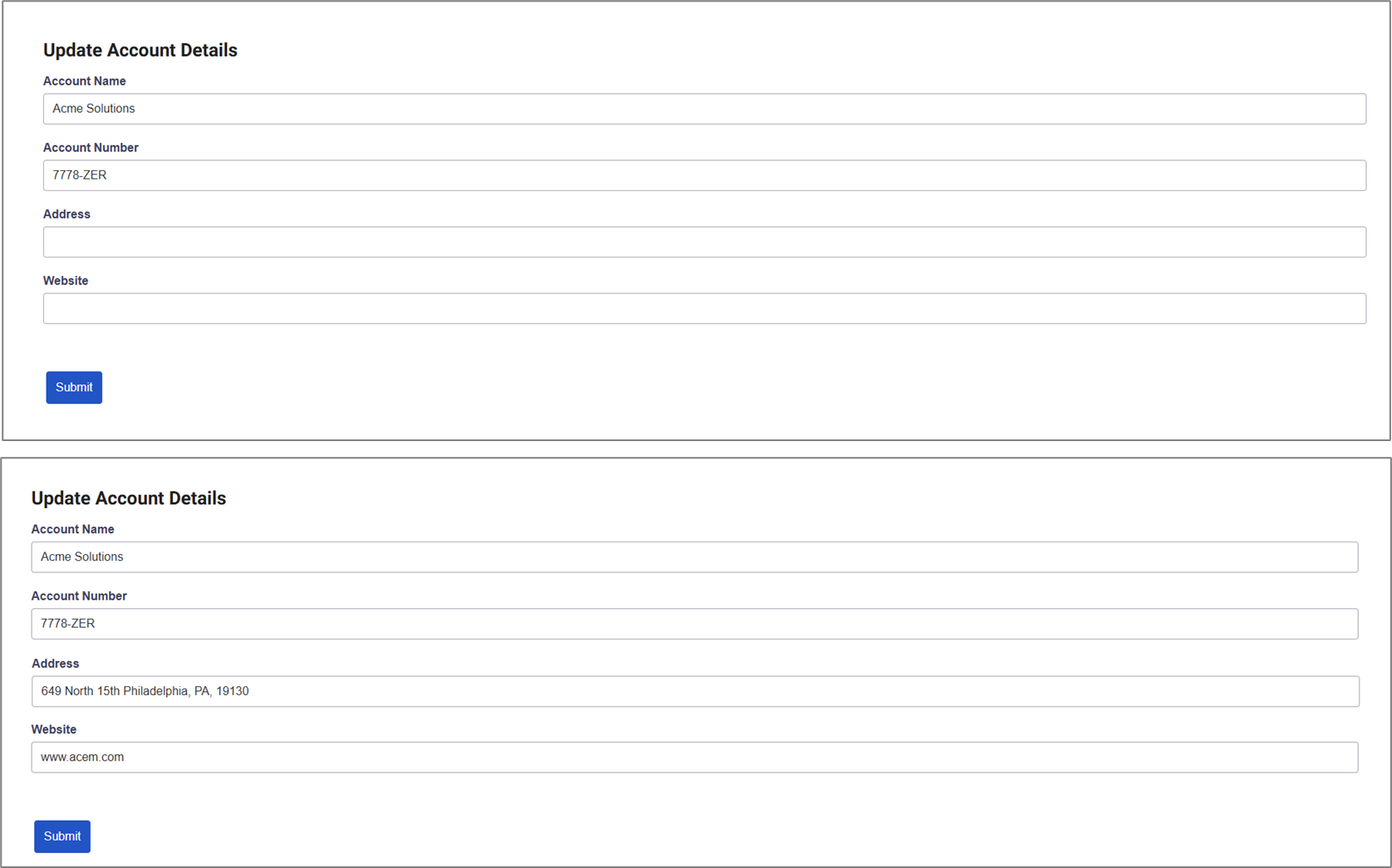
Figure 7: Updating Information
After the process is submitted, the new information is updated in Salesforce.
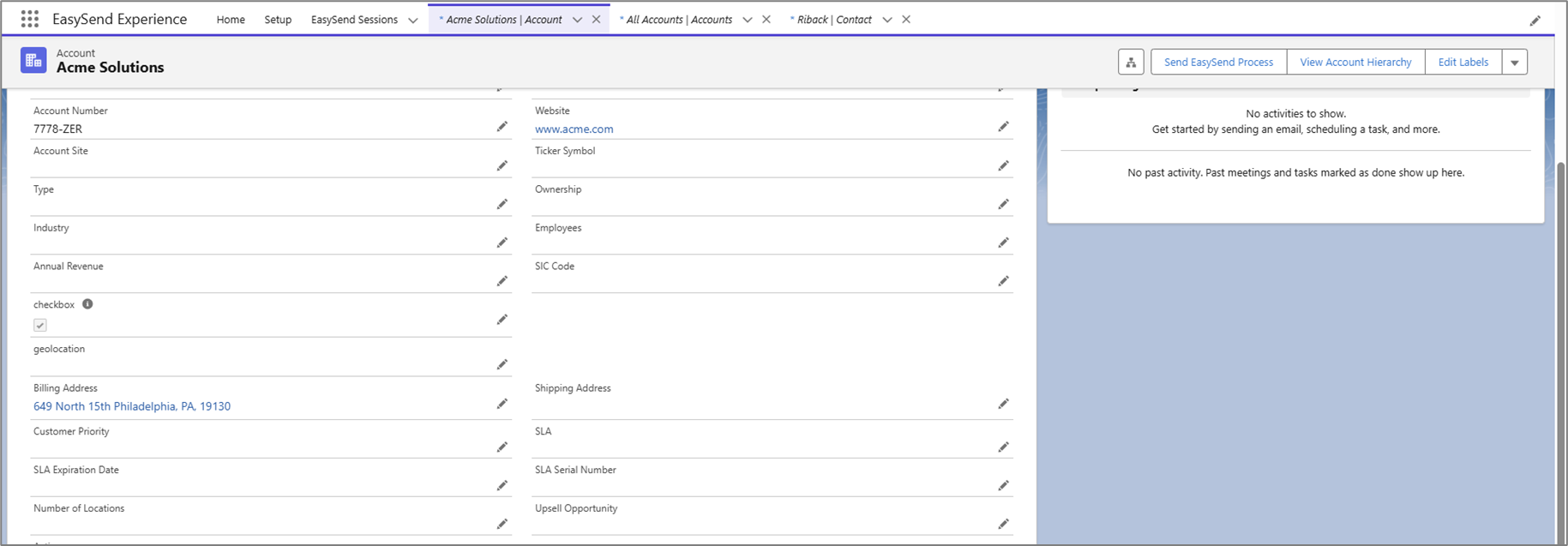
Figure 8: Updated Information
Use Case - Create New Salesforce Records
(See Figure 9)
If you want to initiate a process from Salesforce to create a new record, perform steps 1 to 4 described in this article, and in addition, enter the Process Settings screen and toggle the Create New Record switch (1) to on.
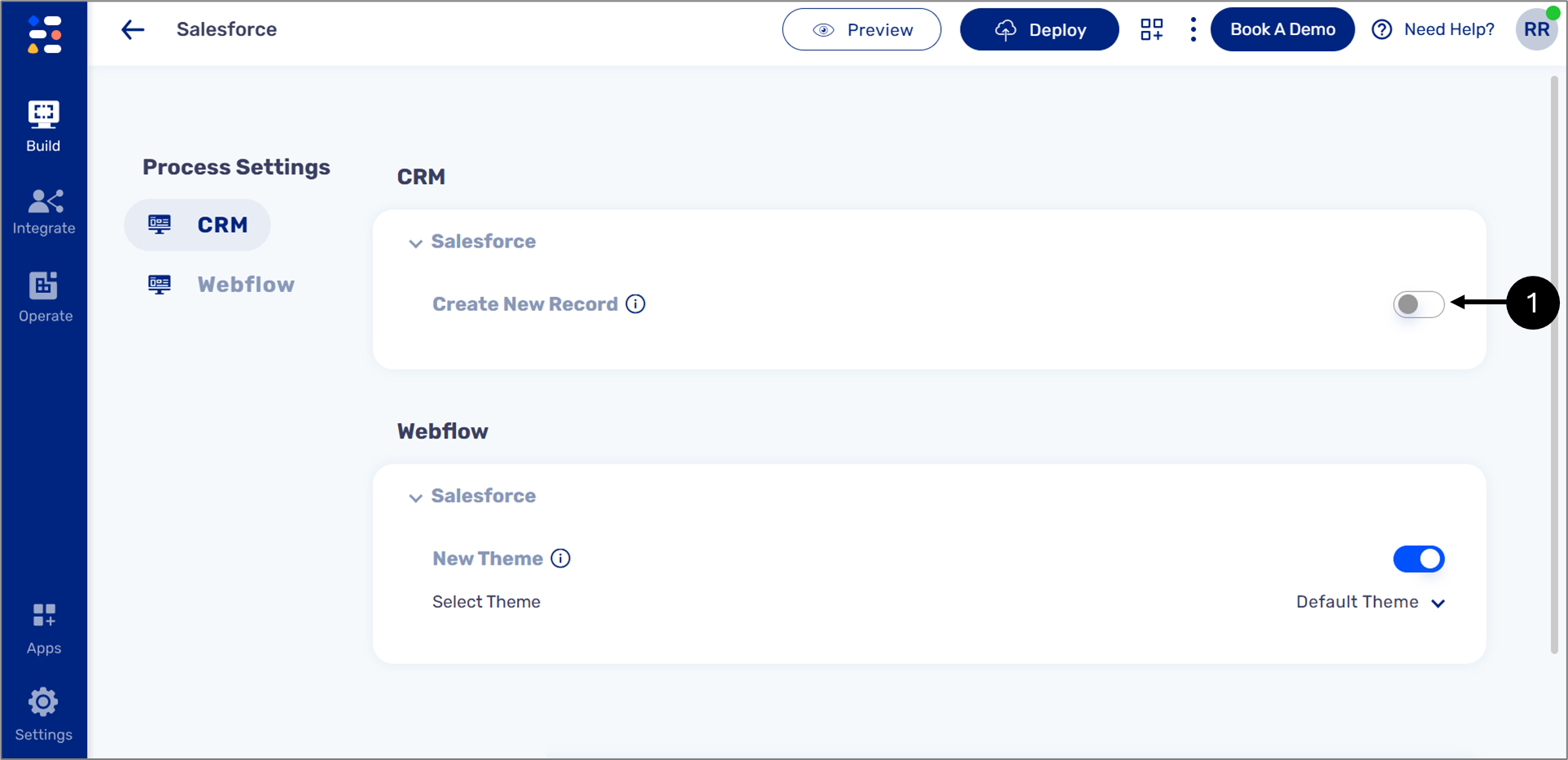
Figure 9: Create New Record Switch