Article Overview
The following article describes how to continuously add an EasySend sessions list.
Add the EasySend Sessions List
(See Figure 1 to Figure 6)
To add the EasySend Sessions list to all relevant record pages, perform the following steps:
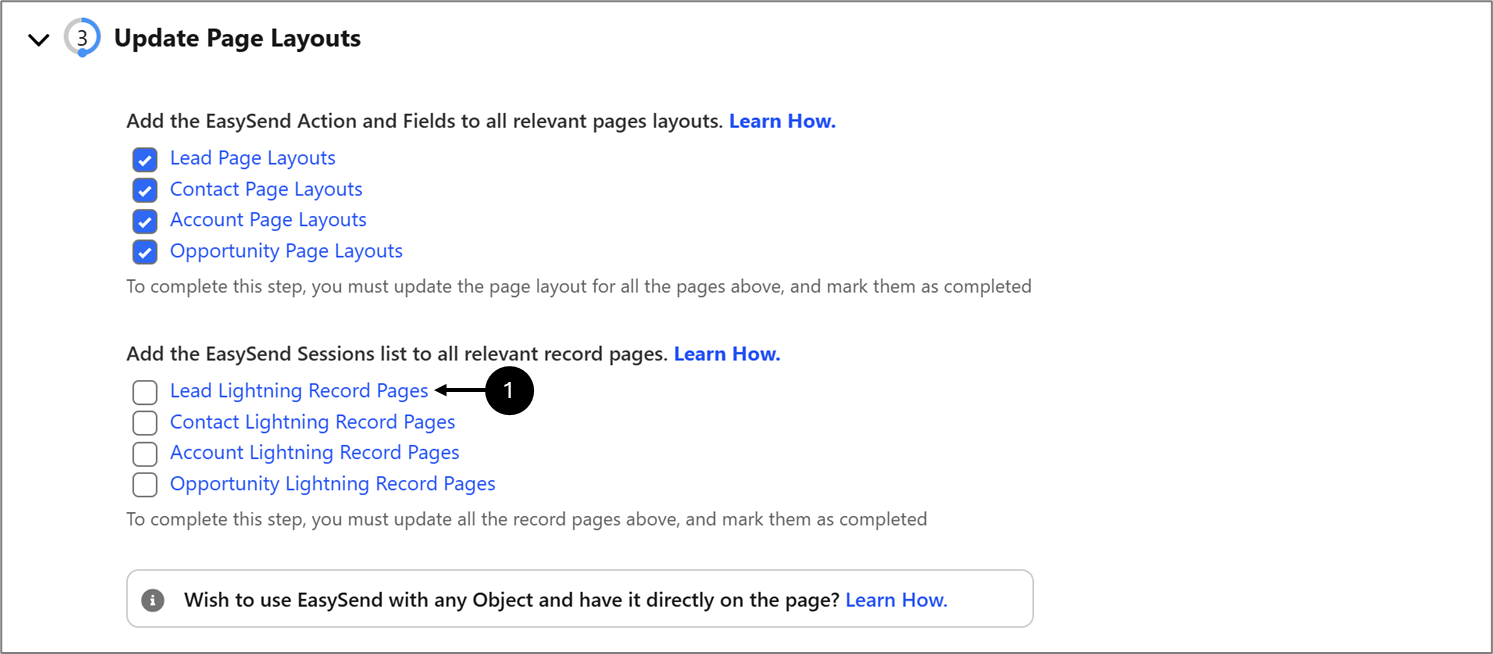
Figure 1: Lead Lightning Record Pages
- Click Lead Lightning Record Pages (1).
Result:
The Lighting Record Pages appears:
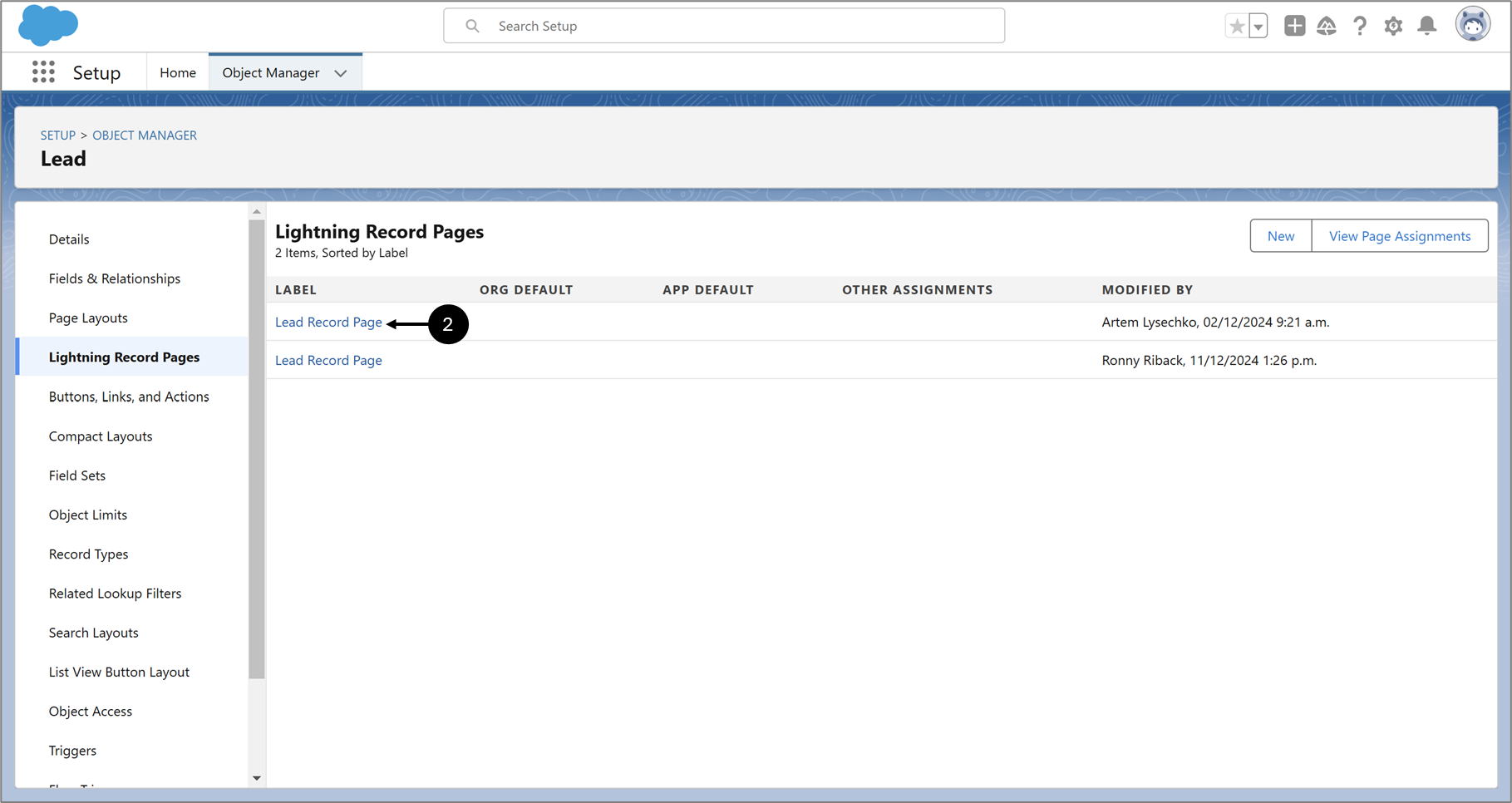
Figure 2: Lightning Record Pages
- Click the desired Lead Record Page option, for example (2).
Result:
The Lead_Record_Page appears:
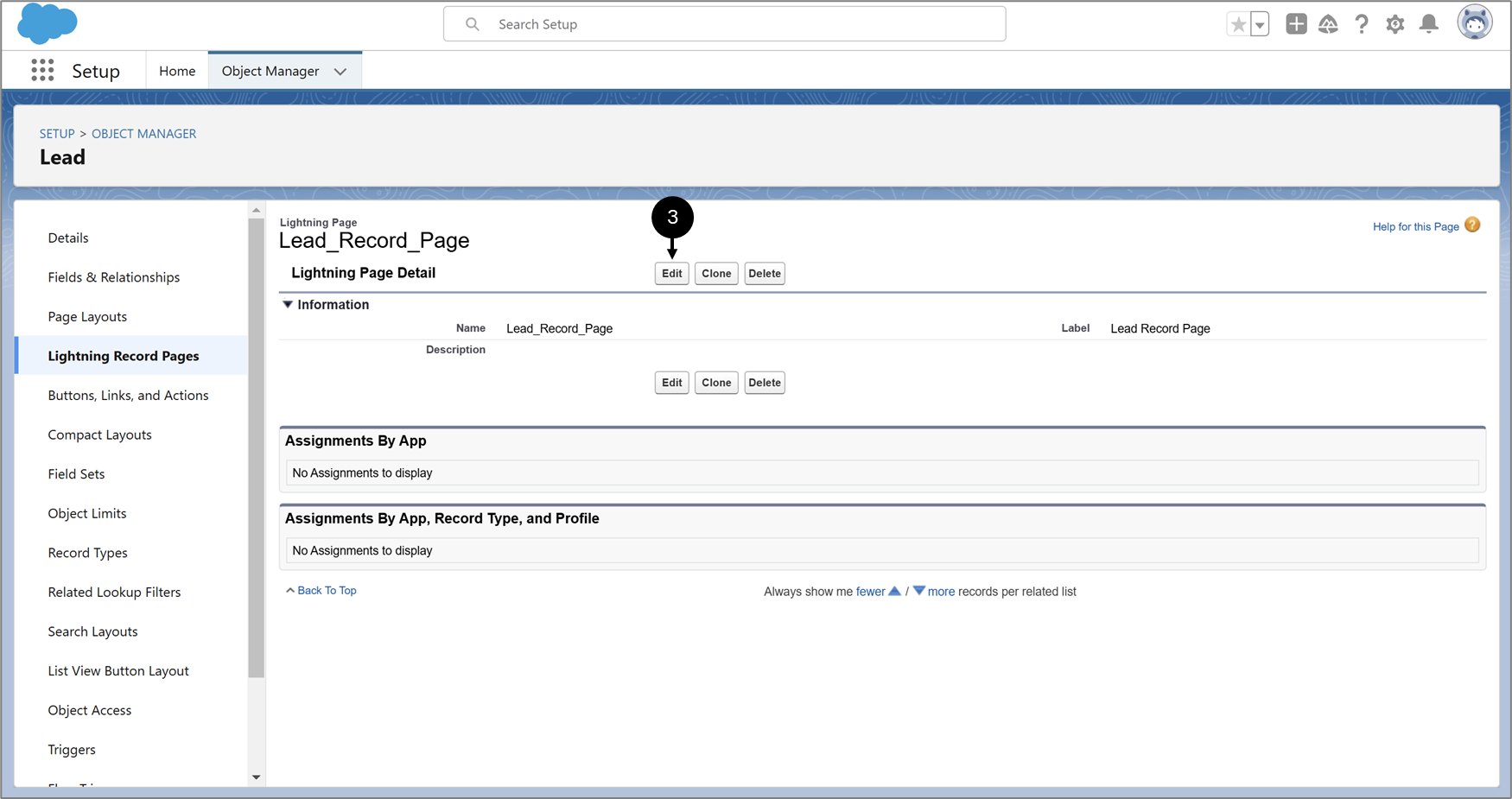
Figure 3: Lead_Record_Page
- Click Edit (3).
Result:
The Lightning App Builder appears:
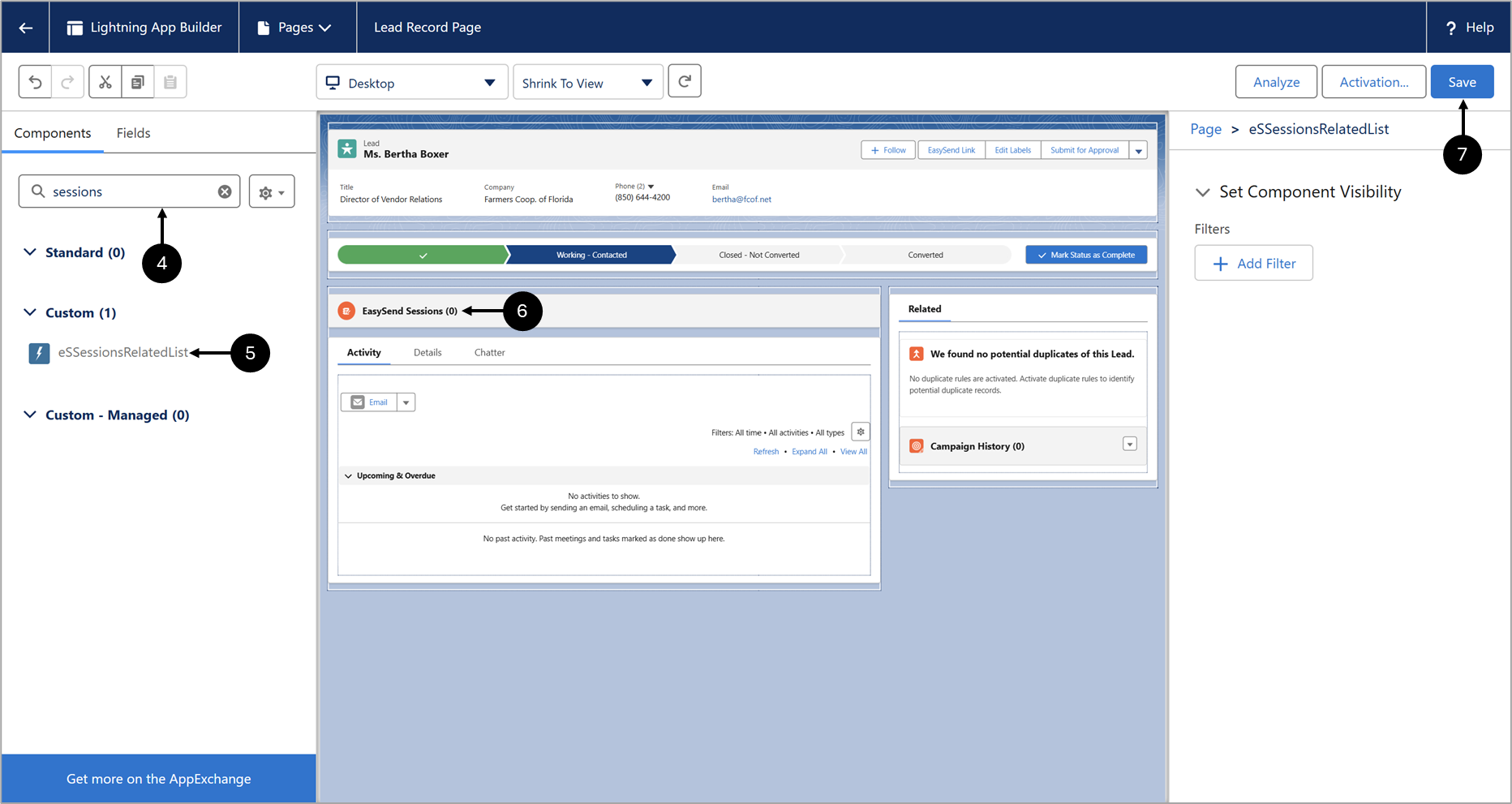
Figure 4: Lightning App Builder
- Search for sessions (4).
- Drag eSSessionsRelatedList (5).
- Drop eSSessionsRelatedList anywhere on the page (6).
- Click Save (7).
- Navigate back to Quick Setup and the Update Page Layouts section.
Result:
The Update Page Layouts section appears:
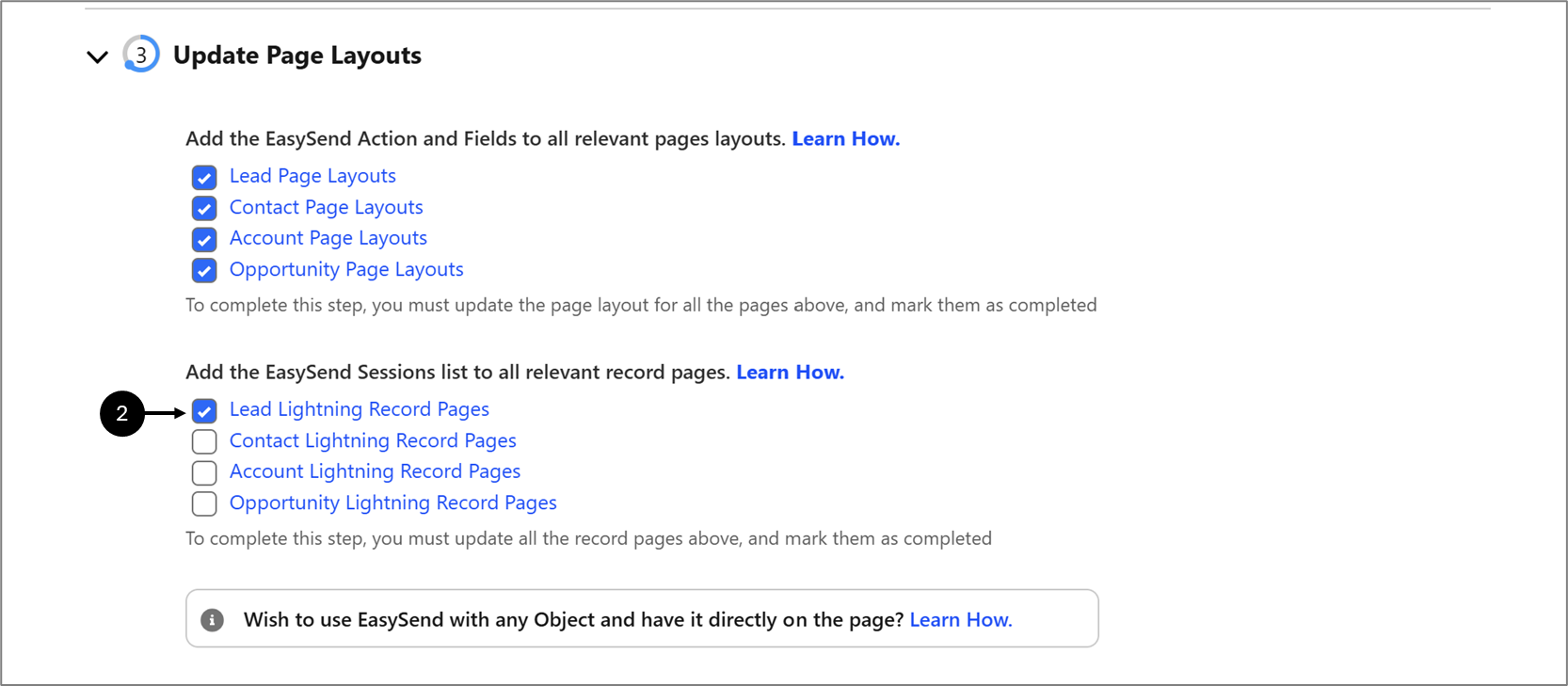
Figure 5: Lead Lightening Record Pages Checkbox
- Check the Lead Lightning Record Pages checkbox (2).
- Repeat Steps 1 to 9 for the Contact Lightning Record Page, Account Lightning Record Page, and Opportunity Lightning Record Page with the proper adjustments.
Result:
All the record pages are updated:
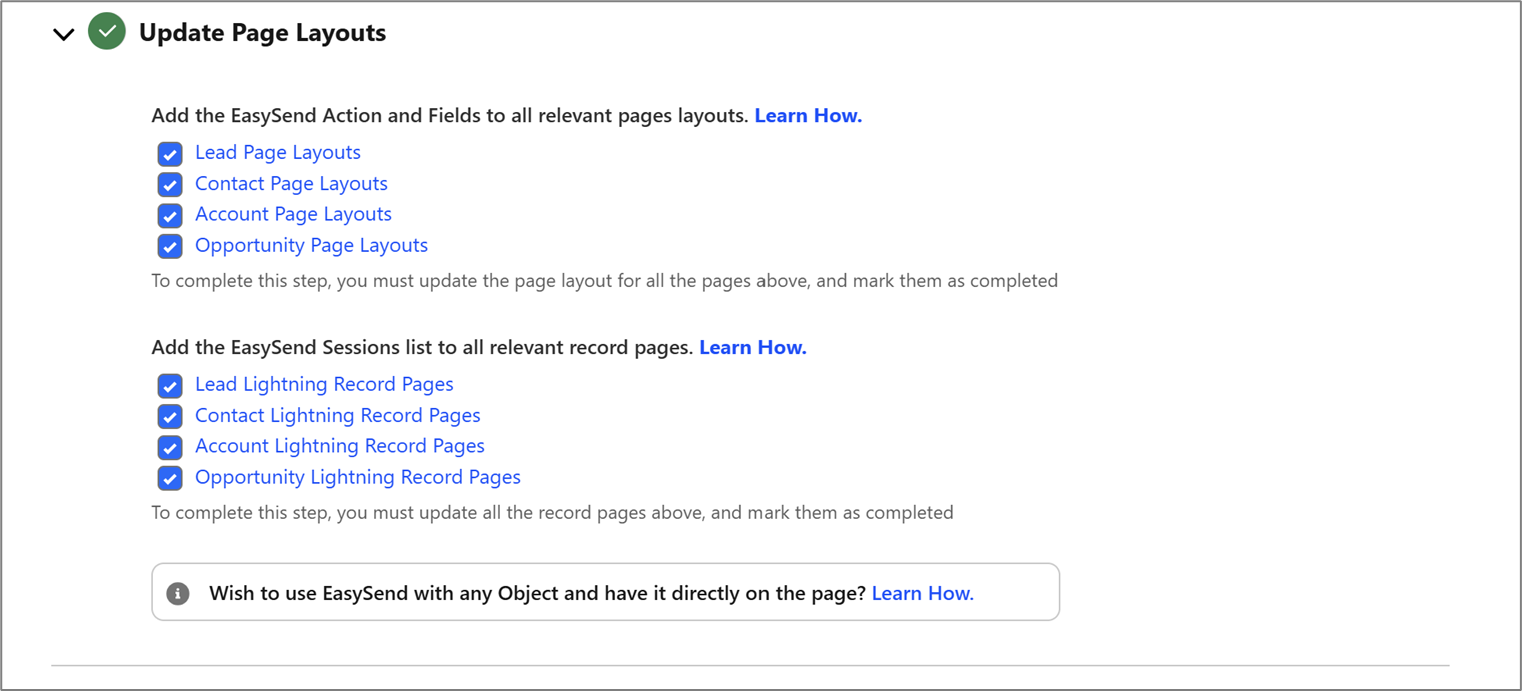
Figure 6: Updated Page Layouts