Article Overview
The following article describes how to configure a custom Hostname (DNS) for a player
Web Application Firewall (WAF) Policies
Since all requests pass through your WAF, it is crucial to ensure that the following paths remain unblocked for the Player server to function correctly:
- /general_static/*
- /player/*
- /api/*
If you have bot protection or security policies, these paths should be whitelisted to:
- Prevent unnecessary blocking
- Avoid false positives
- Ensure seamless operation of the Player server
Option 1 - Access with EasySend WAF -> the {PLAYER_NAME}.easysend.app also available
(See Figure 1)
- Provide Sub-Domain
- On our Cloudflare account, set up the custom domain:
- Log in to Cloudflare
- Navigate to the “easysend.app” domain
- Under “SSL/TLS” go to “Custom Hostnames”
- Click “Add custom hostname”:
- Custom Hostname: Customer sub-domain (FQDN - full qualified domain name), for instance “forms.xxxx.co.il”
- Minimum TLS Version: 1.2
- Certificate type: Provided by Cloudflare
- SSL certificate authority: Google Trust Services
- Certificate validation method: TXT Validation
- Custom Origin Server: {PLAYER_NAME}.easysend.app
- Click “Add custom hostname”
- Save the text records and provide them to the customer with the following instructions:
- Please create the below new DNS TXT records:
- DCV Delegation for Custom Hostnames:
- TXT Name: _acme-challenge.{FQDN}
- TXT Value: TXT Value: {FQDN}.60cc560555bdab86.dcv.cloudflare.com
- DCV Delegation for Custom Hostnames:
- Hostname pre-validation:
- TXT Name: _cf-custom-hostname.{FQDN}
- TXT Value: Copy from Cloudflare
- Create a new CNAME DNS record with the below values:
- Type: CNAME
- Target: {PLAYER_NAME}.easysend.app
- Please create the below new DNS TXT records:
- Go to the Rules page in Cloudflare:
- Click “Create Page Rule”:
- In URL - use the {FQDN}/* (i.e. forms.xxxx.co.il/* )
- Choose the settings are: “Host Header Override”
- In value type: {PLAYER_NAME}.easysend.app
- Deploy the change
- Click “Create Page Rule”:
- Configure helm: - Only after setting the above DNS records:
- EASYSEND_PLAYER_BACKEND_ADDRESS: {FQDN}
- EASYSEND_PLAYER_FRONTEND_ADDRESS: {FQDN}
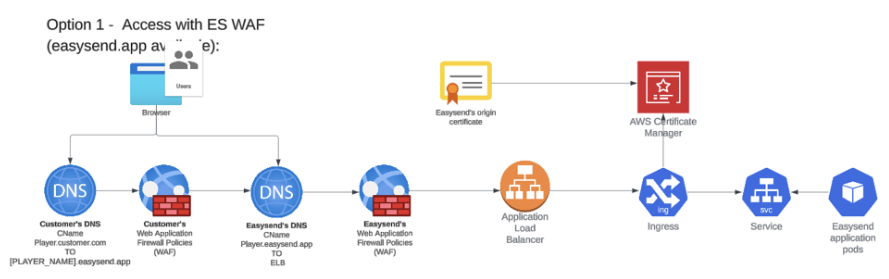
Figure 1: Access With EasySend WAF
Option 2 - Direct access with EasySend WAF -> the {PLAYER_NAME}.easysend.app is not available
(See Figure 2)
- Provide Sub-Domain
- On the Cloudflare account, set up the custom domain:
- Log in to Cloudflare
- Navigate to the “easysend.app” domain
- Under “SSL/TLS” go to “Custom Hostnames”
- Click “Add custom hostname”:
- Custom Hostname: Customer sub-domain (FQDN - full qualified domain name), for instance “forms.xxxx.co.il”
- Minimum TLS Version: 1.2
- Certificate type: Provided by Cloudflare
- SSL certificate authority: Google Trust Services
- Certificate validation method: TXT Validation
- Custom Origin Server: Configure to the relevant ALB (read about Custom Domain Routing for EasySend Application Endpoints)
- Click “Add custom hostname”
- Save the text records and provide it to the customer with the following instructions:
- Please create the below new DNS TXT records:
- DCV Delegation for Custom Hostnames:
- TXT Name: _acme-challenge.{FQDN}
- TXT Value: {FQDN}.60cc560555bdab86.dcv.cloudflare.com
- Hostname pre-validation:
- TXT Name: _cf-custom-hostname.{FQDN}
- TXT Value: Copy from Cloudflare
- DCV Delegation for Custom Hostnames:
- Create a new CNAME DNS record with the below values:
- Type: CNAME
- Target: Configure to the relevant ALB (read about Custom Domain Routing for EasySend Application Endpoints)
- Make sure that the SSL\TLS encryption mode are “Full” and Not Flexible on the customer end
- Please create the below new DNS TXT records:
- Configure helm: - Only setting the above DNS records:
- EASYSEND_PLAYER_BACKEND_ADDRESS: {FQDN}
- EASYSEND_PLAYER_FRONTEND_ADDRESS: {FQDN}
- BASE_URL: {FQDN}
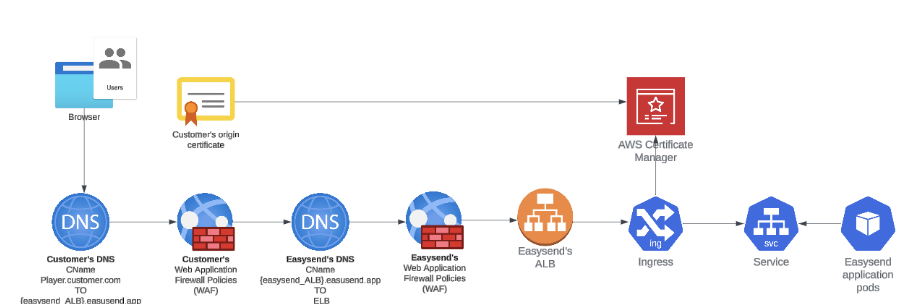
Figure 2: Direct Access With EasySend WAF
Reference
Strict (SSL-Only Origin Pull)
Enforce encryption between Cloudflare and your origin. Use this mode to ensure that connections to your origin are always encrypted, regardless of your visitor’s request.
Full (Strict)
Enable encryption end-to-end and enforce validation on origin certificates. Use Cloudflare’s Origin CA to generate certificates for your origin.
Full
Enable encryption end-to-end. Use this mode when your origin server supports SSL certification but does not use a valid, publicly trusted certificate.
Flexible
Enable encryption only between your visitors and Cloudflare. This will avoid browser security warnings; however, all connections between Cloudflare and your origin are made over HTTP.
Off (not secure)
No encryption applied. Turning off SSL disables HTTPS and causes browsers to show a warning that your website is not secure.
Custom Domain Routing for EasySend Application Endpoints
When you wish to utilize custom domains without directly accessing the default “player.easysend.app” endpoint, it is essential to route their traffic through the designated Application Load Balancers (ALB) specific to each region or environment. Below is a list of the recommended ELBs that should be used:
| Enviroment | Region | ALB URL |
| DEV | Frankfurt | fra-da-alb-01.easysend.app |
| DEV | Frankfurt | fra-da-alb-02.easysend.app |
| DEV | Tokyo | jap-da-alb-01.easysend.app |
| PROD | Frankfurt | fra-pa-alb-01.easysend.app |
| PROD | Zurich | zh-pa-alb-01.easysend.app |
| PROD | Tokyo | jap-pa-alb-01.easysend.app |
| PROD | Sydney | aus-pa-alb-01.easysend.app |
| PROD | Ohio | ohi-pa-alb-01.easysend.app |
| PROD | Canada | can-pa-alb-01.easysend.app |
By directing traffic through these specific ELBs, customers can seamlessly integrate their custom domains while maintaining optimal performance and security. This approach ensures that all user interactions are properly routed and managed, preserving the integrity and reliability of the EasySend application. For further details or assistance with setting up custom domain routing, please refer to our documentation or contact our support team.