Article Overview
Learn what AI Docs are, what they include, and why they’re useful, plus step-by-step instructions for generating them from the Process Manager or a specific process version and sharing them as an HTML file.
What Are AI Docs?
(See Figure 1)
AI Docs are auto-generated process documentation reports from EasySend's Builder. AI Docs are a readable snapshot of your process.
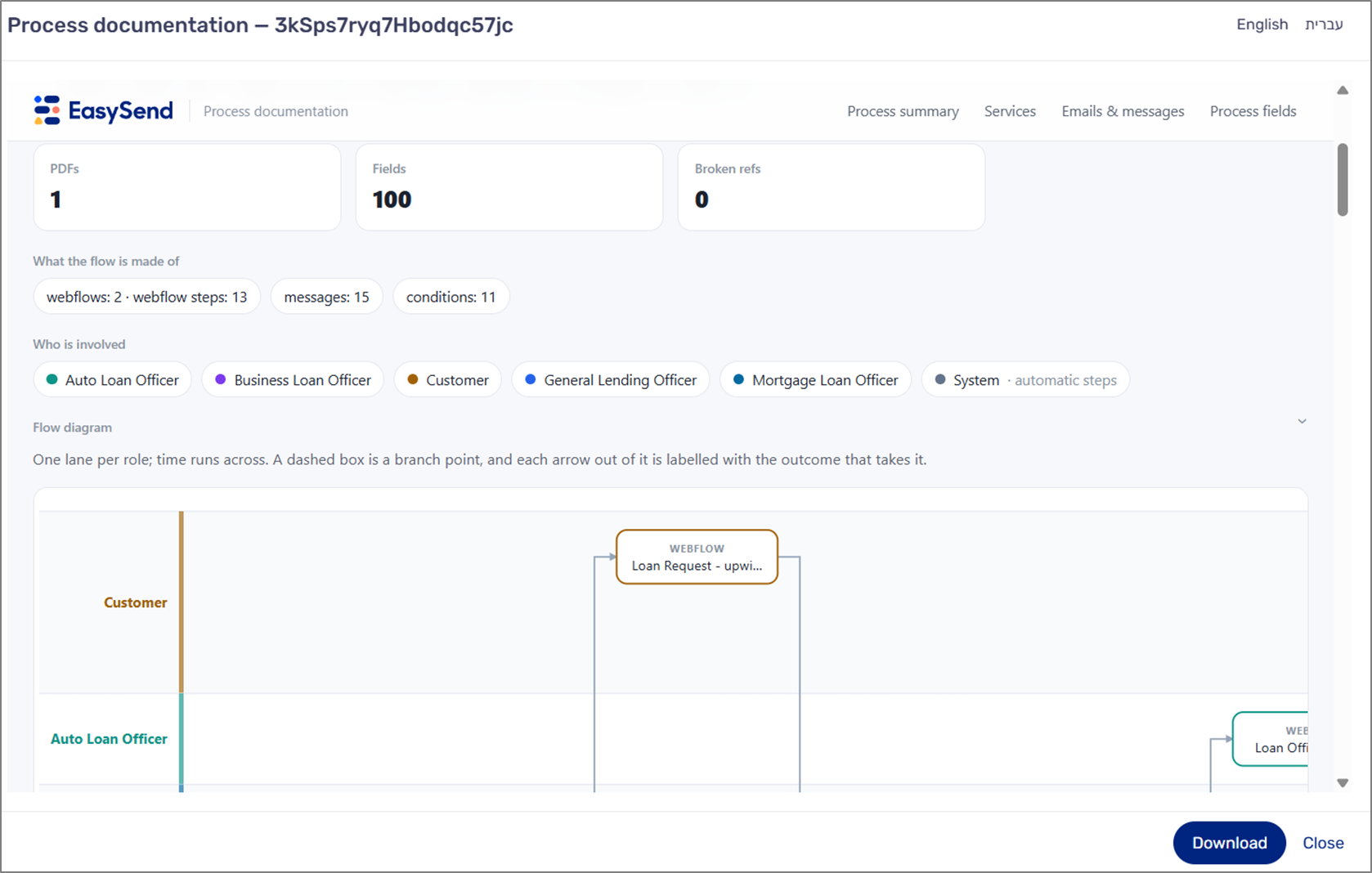
Figure 1: Process Documentation Example
What Do AI Docs Include?
(See Figure 2)
Builder processes are made of webflows, conditions, emails, fields, and integrations spread across many screens. To understand one today, you have to click through all of it, or ask the person who built it. This documentation turns all of that into a single document anyone can read:
- A plain-language summary
- A flow diagram by role (Customer, Internal, System)
- Every email, with its recipient, subject, attachments, and body
- Every field, with its type, validations, logic, and dependencies
- The integrations used
- A health check (broken references, field counts)
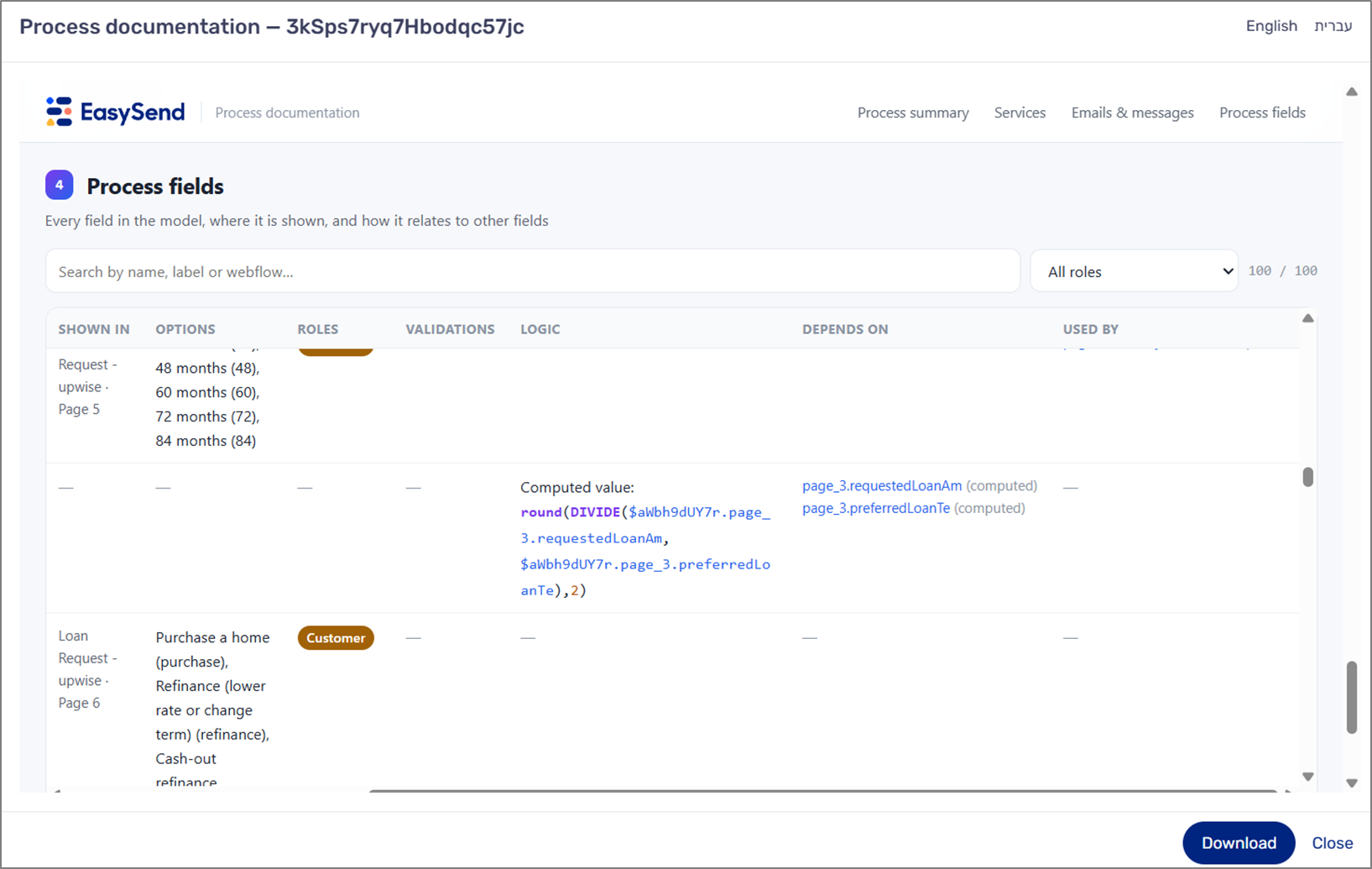
Figure 2: Process Documentation Example - Process Fields
It reflects the process exactly as it is in the builder at that moment, so it always matches what was actually built rather than what someone remembers building.
Business Value
- Shared understanding without builder access - business owners, compliance, IT, and customers can review a process without logging into the builder or needing a walkthrough.
- Faster sign-off and fewer mistakes - reviewers see every email recipient, condition, and validation in one place, so problems surface before go-live.
- Handover and continuity. When a builder leaves, a partner hands over a project, or a process is revisited months later, the logic is documented instead of living in someone’s head.
- Audit and governance support - regulated customers (insurance, banking) often need to show what a customer-facing process does and what data it collects. The report gives them that. It also deliberately excludes credentials and encryption settings, so it is safe to share.
When builder users will use it
- Before go-live - a QA and approval pass with the business owner (“is this what you asked for?”).
- During the build - a sanity check on broken references, unused fields, and wrong email recipients or conditions.
- When presenting to customers or prospects: showing the full process on one page instead of demoing every screen.
- At handover - between builders, from professional services to the customer, or from partner to client.
- When making changes - checking which fields depend on what before editing something, using the dependency columns.
- For audit or compliance requests - documenting what data is collected and what is sent to whom.
- For onboarding - helping new team members learn an existing process quickly.
How to Generate AI Docs
(See Figure 3 to Figure 5)
- There are two ways to generate AI Docs. First, using the Process Manager screen. Locate the desired process, click the three dots, and then click Process Documentation. Please note that this action will generate AI Docs for the current deployed version of the process.
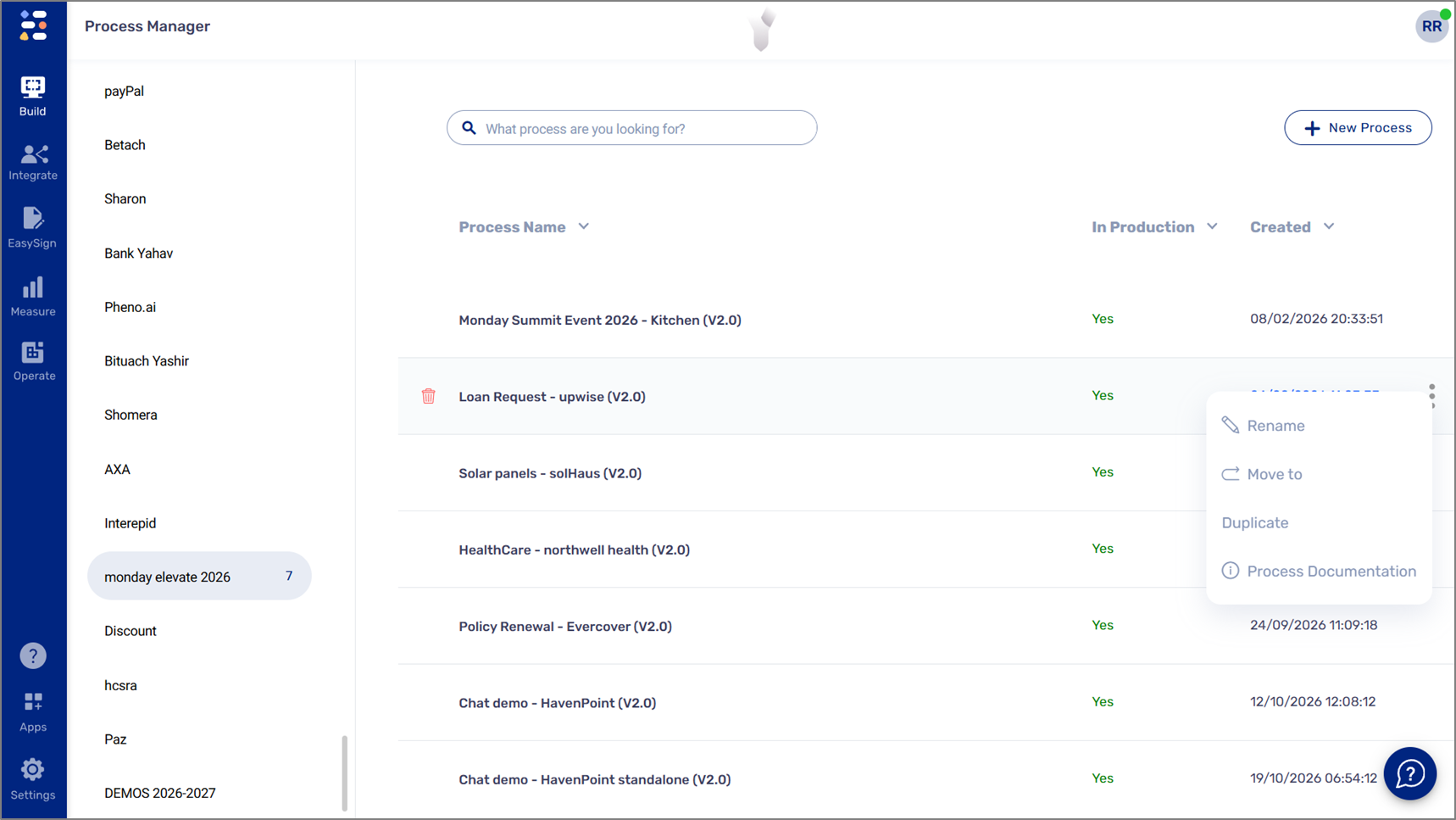
Figure 3: Generating AI Docs 1 of 3
Second, access the desired process and click the Versions icon. Next, locate the desired version, click the three dots, and then click Documentation. Please note that this action will generate AI Docs for the selected version of the process.
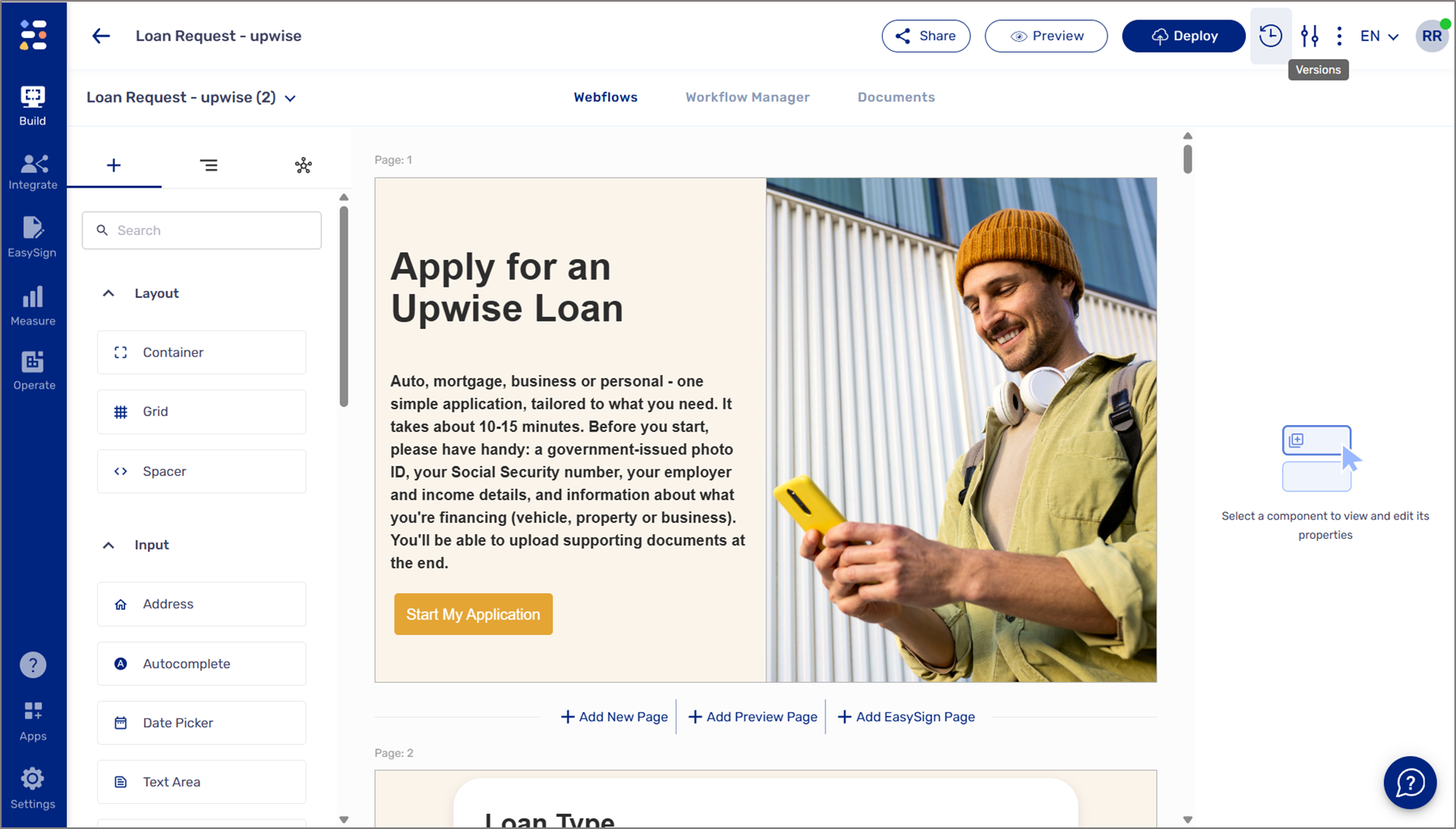
Figure 4: Generating AI Docs 2 of 3
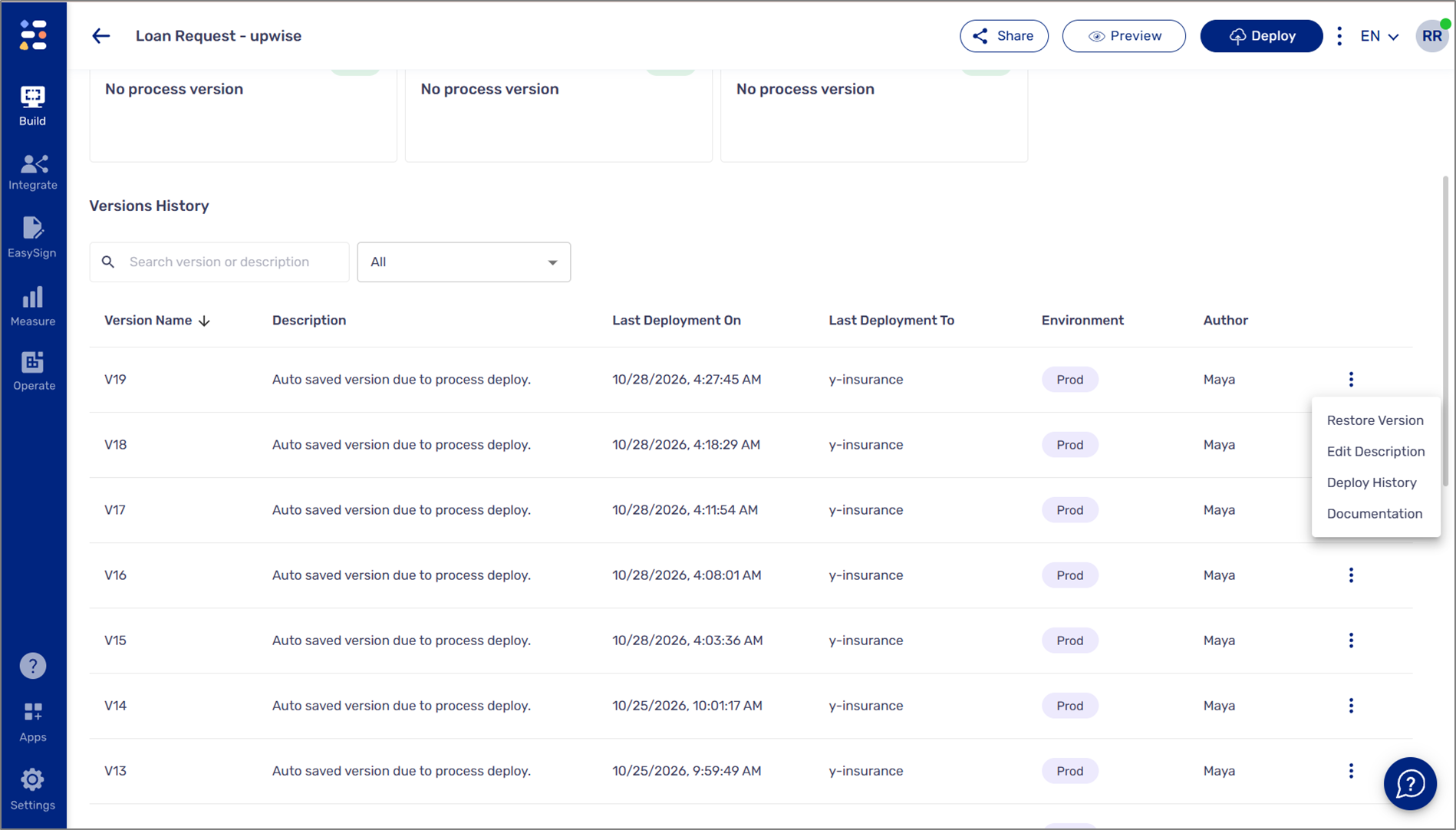
Figure 5: Generating AI Docs 3 of 3
Sharing AI Docs
(See Figure 6)
To share AI Docs, click the download button. This will create a shareable HTML file.
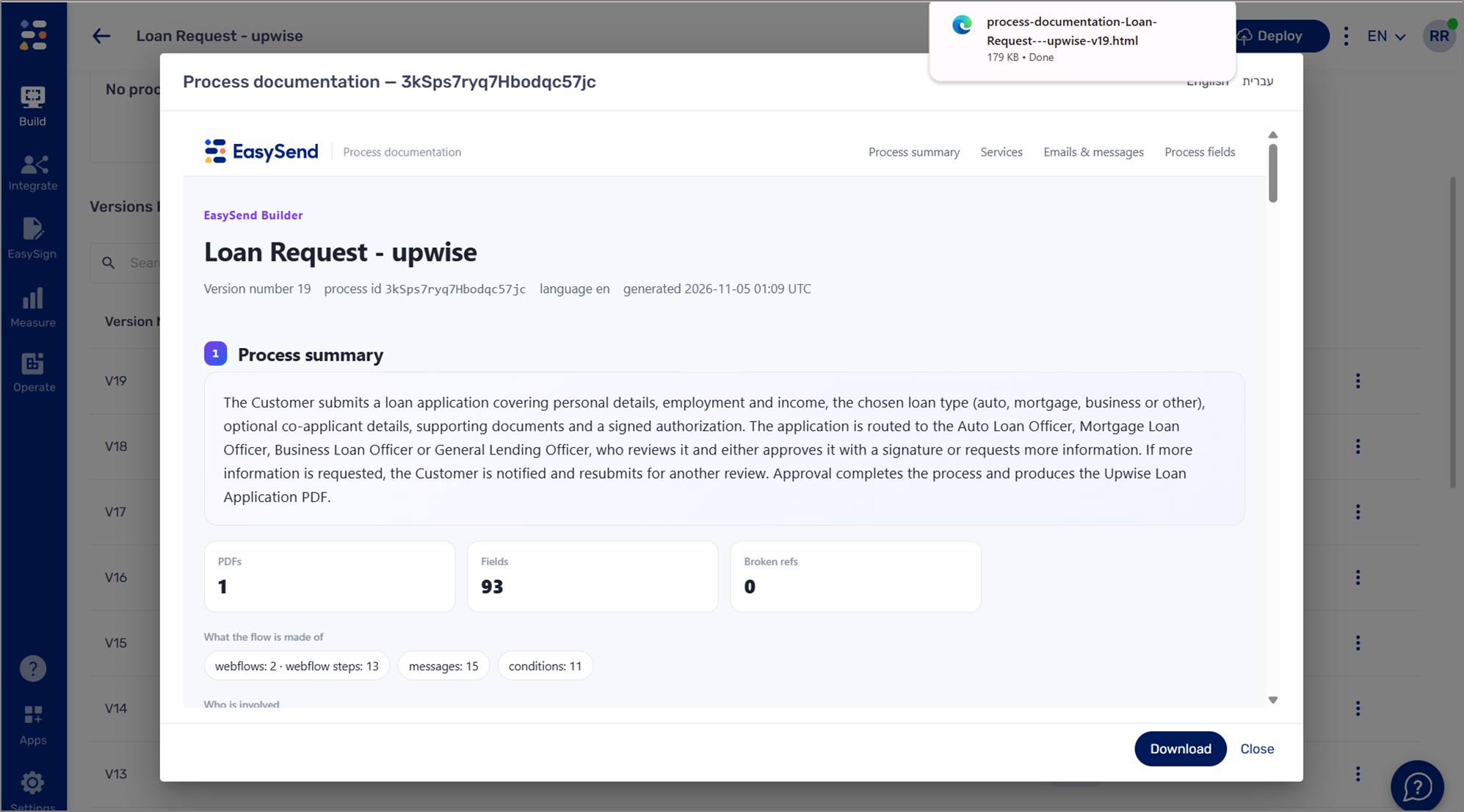
Figure 6: Shareable HTML