---
title: "Communication"
slug: "communication"
updated: 2026-07-23T00:14:32Z
published: 2026-07-23T00:14:32Z
canonical: "kb.easysend.io/communication"
---
> ## Documentation Index
> Fetch the complete documentation index at: https://kb.easysend.io/llms.txt
> Use this file to discover all available pages before exploring further.
# Communication
## **Article Overview**
The following article describes the Email and SMS building blocks located under the Communication category.
## Communication
(See **Figure 1**)
The Communication category contains three building blocks:
- Email
- SMS
- Messaging

**Figure 1: Communication**
The building blocks are used to configure communication channels for interacting with different end-users (roles) during the life cycle of a process, for example:
- When starting a new step, upon the initiation of the process
- Upon submission, for example, sending an email notifying an end-user that their part of the process is complete
### Email
(See **Figure 2** to **Figure 9**)
The Email contains the following options and fields:
- Label
- Role
- Edit Message
- Description

**Figure 2: Email**

**Figure 3: Label and Role**
When clicking the Edit Message button, the Edit Message window appears. This window is divided into two sections:
- Message Content
- Advanced
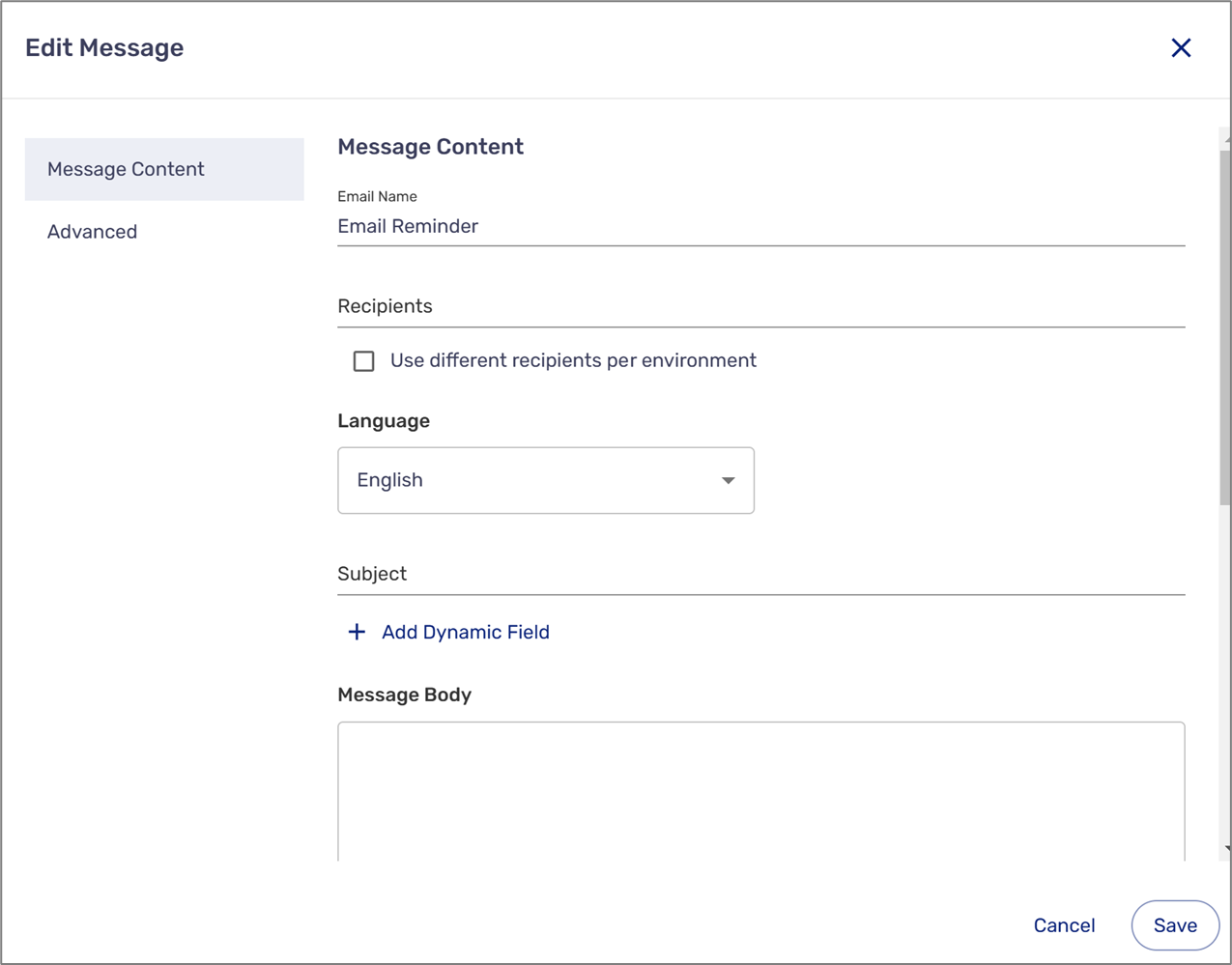
**Figure 4: Edit Window Message**
The Message Content section contains the following fields and options:
- Email Name
- Recipients - can be static or dynamic:
- Static - for example, **r.riback@easysend.io**
- Dynamic - data items and/or metadata items
**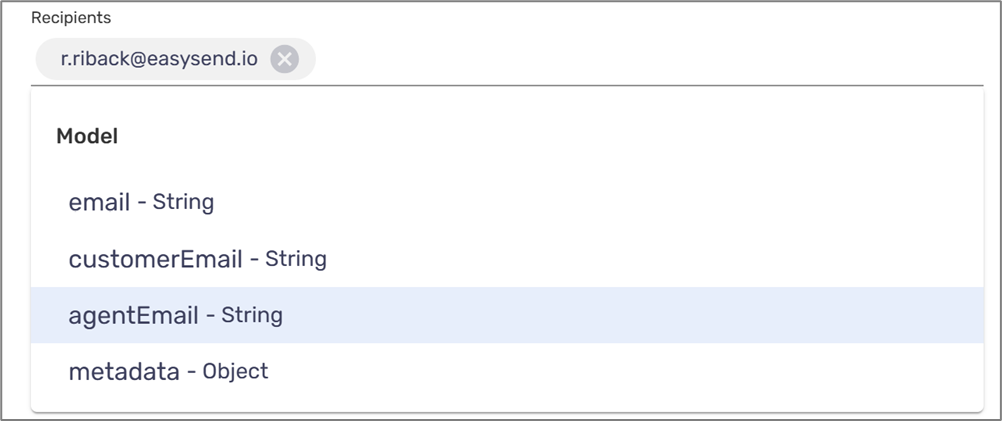**
**Figure 5: Adding Recipients**
NOTEYou can add recipients to different environments.
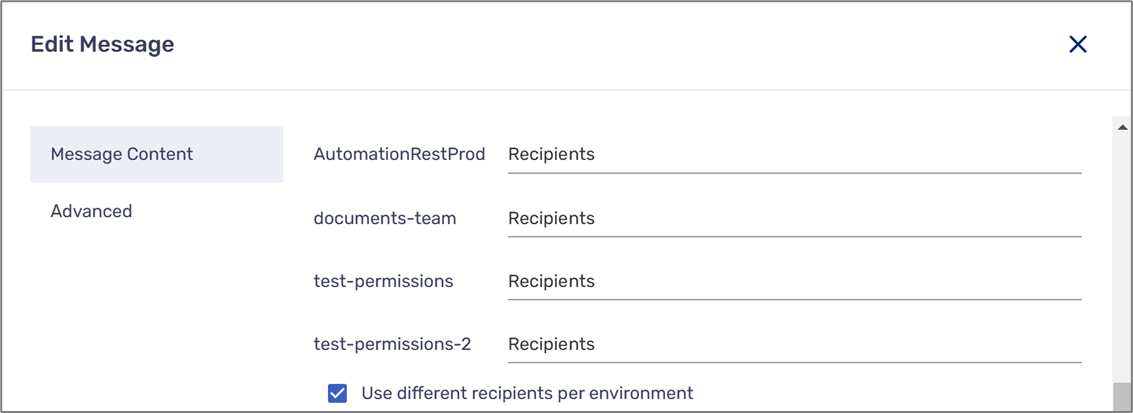
- The language of the email (according to available languages in your environment)
- Subject - can include dynamic data items and/or metadata items

**Figure 6: Subject**
- Message Body - the content of the email:
- Written in HTML
- HTML tags such as
and can be used
- The content can include dynamic fields:
- Data items
- Metadata items
- A Process link and a Co-Browsing link can be included in the content by clicking the + Add Dynamic Field option and selecting from the list under the Workflow category (1):
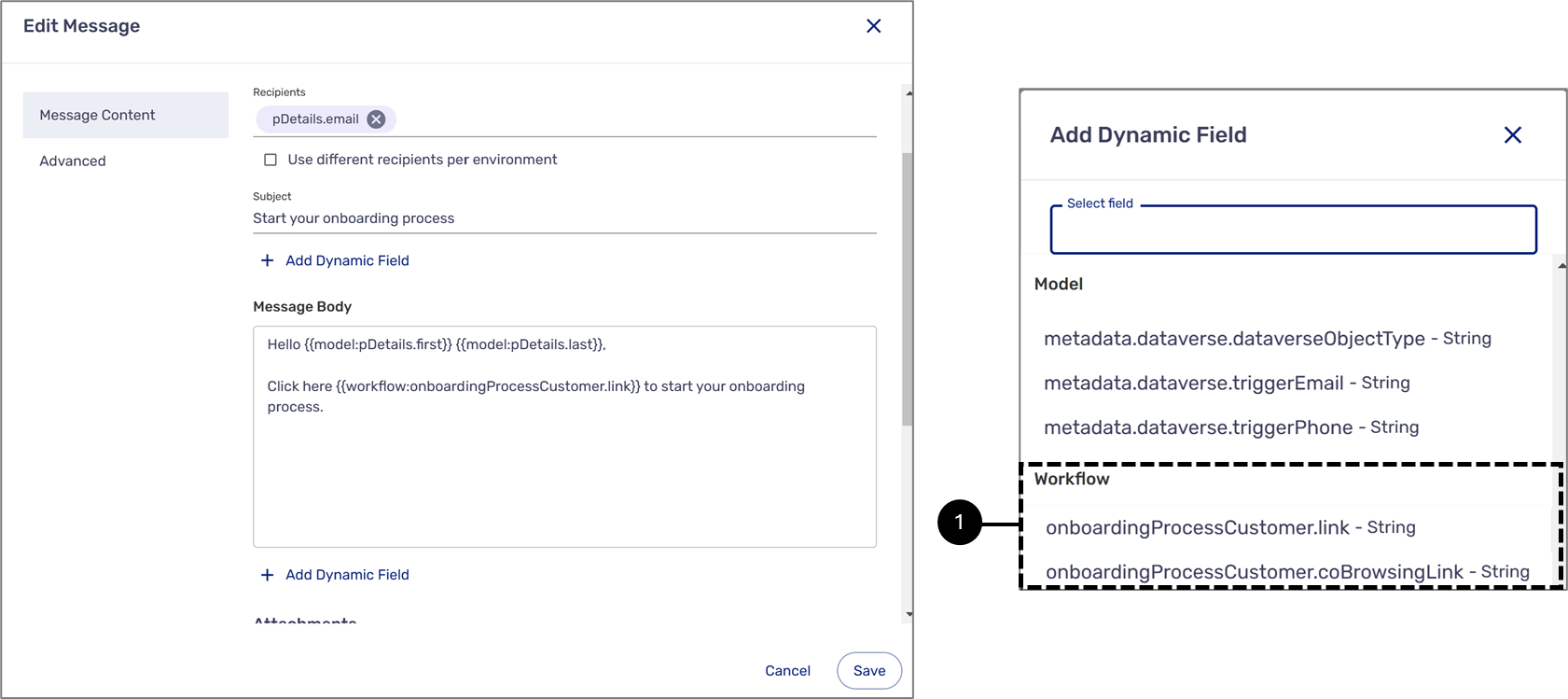
**Figure 7: Message Body**
NOTE
- When writing HTML code in the message body, EasySend will automatically validate the content and will display an error message in case of incorrect syntax, for example:

- To learn about adding a Co-Browsing link, click [here](https://kb.easysend.io/docs/workflow-manager-usage-guidelines#using-cobrowsing).
- To learn about adding a process link, click [here](https://kb.easysend.io/docs/workflow-manager-usage-guidelines#adding-process-links).
The Advanced section contains the following fields and options:
- Attachments - can include:
- PDF - the PDF files that were uploaded to the Builder platform as part of the platform
NOTEThis option will appear only if one or more PDF files are uploaded to the Builder platform.
-
- User Files - the files that were uploaded by the end-user during the process
NOTEThis option will appear only if one or more files are uploaded to the process.
-
- Model As - a copy of the Model of the process in three different formats:
- JSON
- XML
- CSV
- Audit Trail As - an audit trail copy of the process in two different formats:
- JSON
- PDF

**Figure 8: Message Body**
- Advanced options:
- Set a custom reply-to email address:
- When toggle to on - enables to set a custom reply-to email address
- When toggle to off - the option is disabled
- Encrypt all PDF documents attached to email:
- When toggle to on - enables to encrypt attached PDF documents with a password
- When toggle to off - the option is disabled
- Email footer:
- When toggle to on - enables to select a footer template
- When toggle to off - the option is disabled
NOTETemplates are created using the Output Manager.
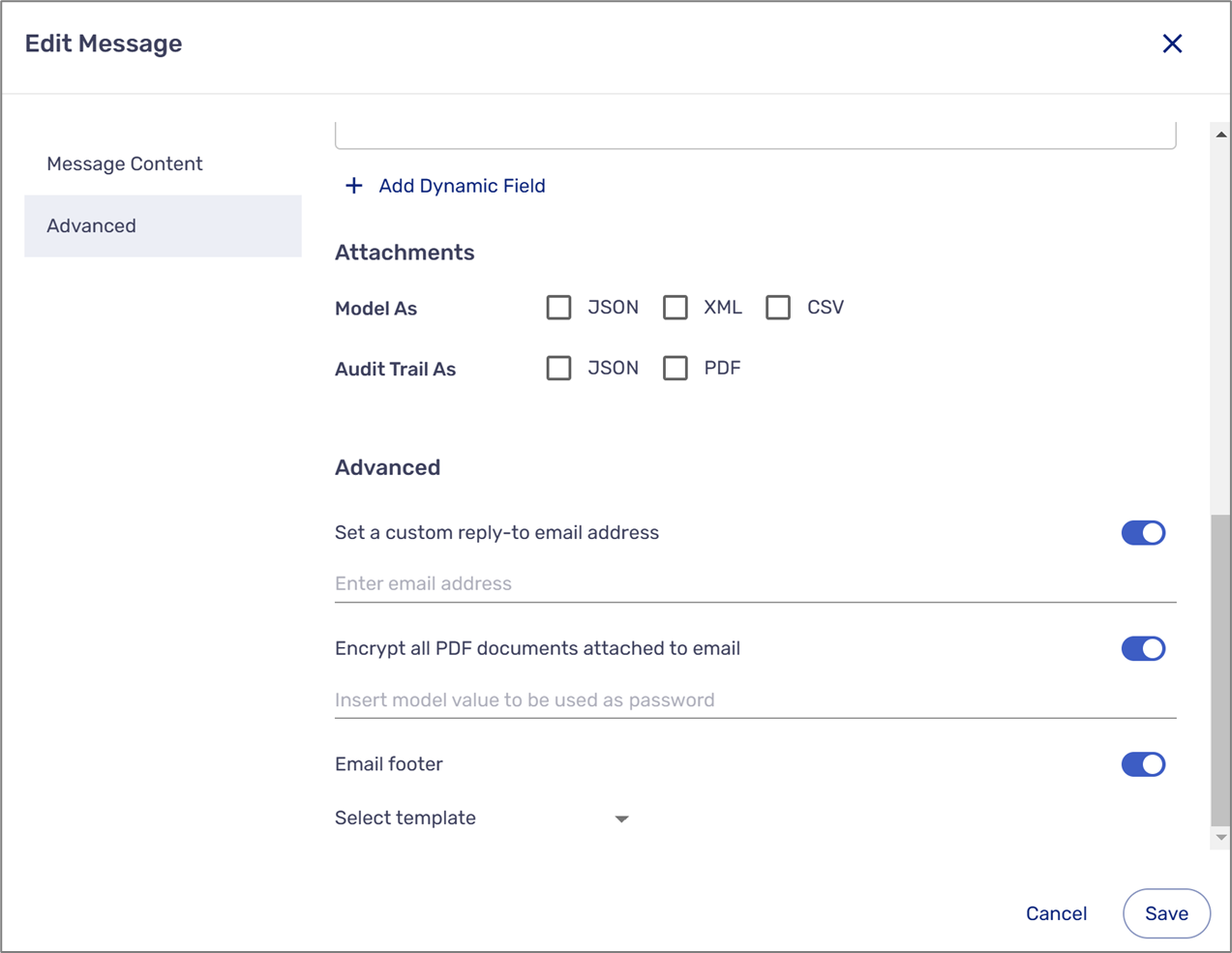
**Figure 9: Advanced Options**
### Preview Email
(See **Figure 10**)
When writing an email, you can toggle between two modes:
- Edit - enables you to write the email in HTML, using HTML tags, and add dynamic fields
- Preview - displays how the email will look, in desktop view or mobile view, as it is received in the recipient’s mailbox

**Figure 10: Edit and Preview**
### SMS
(See **Figure 11** to **Figure 15**)
The SMS contains the following options and fields:
- Label
- Role
- Edit Message
- Description

**Figure 11: SMS/Label and Role**
When clicking the Edit Message button, the Edit Message window appears. This window contains the Message Content section with the following fields and options:
- Email Name
- Recipients - can be static or dynamic:
- Static - for example, **2679834455**
- Dynamic - data items and/or metadata items
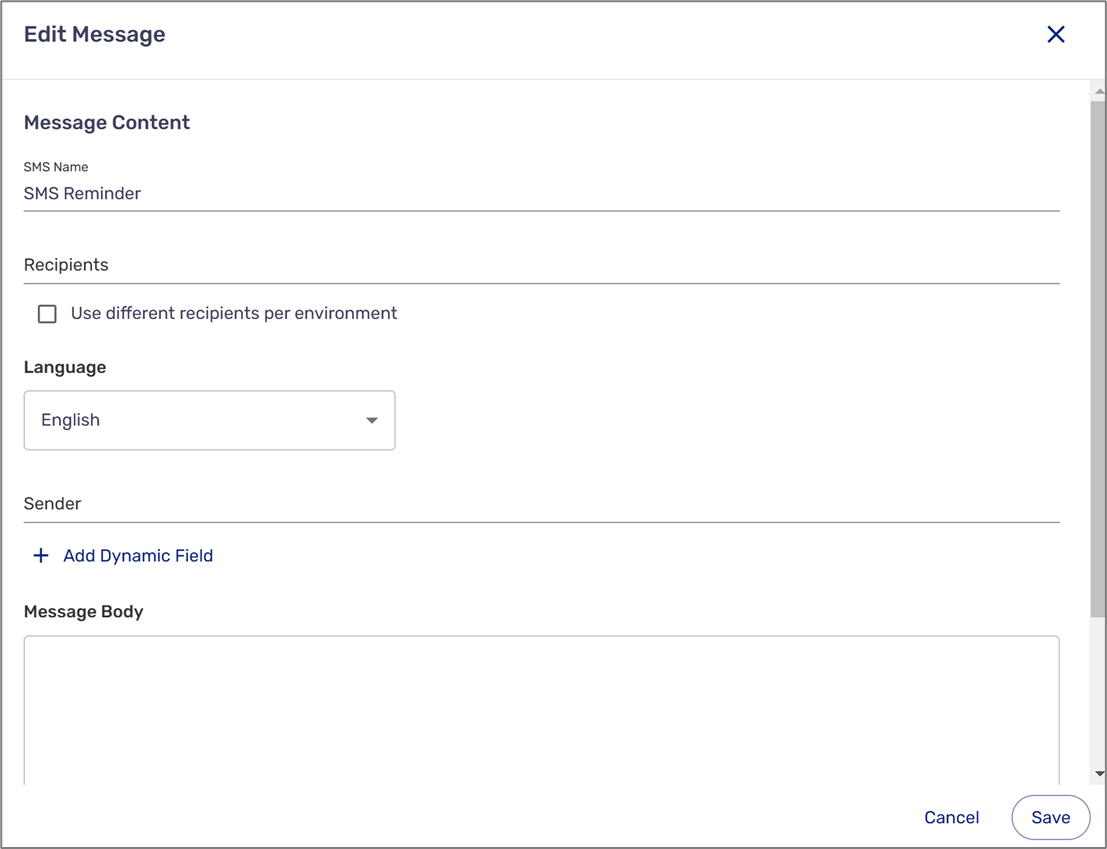
**Figure 12: Edit Message Window**
**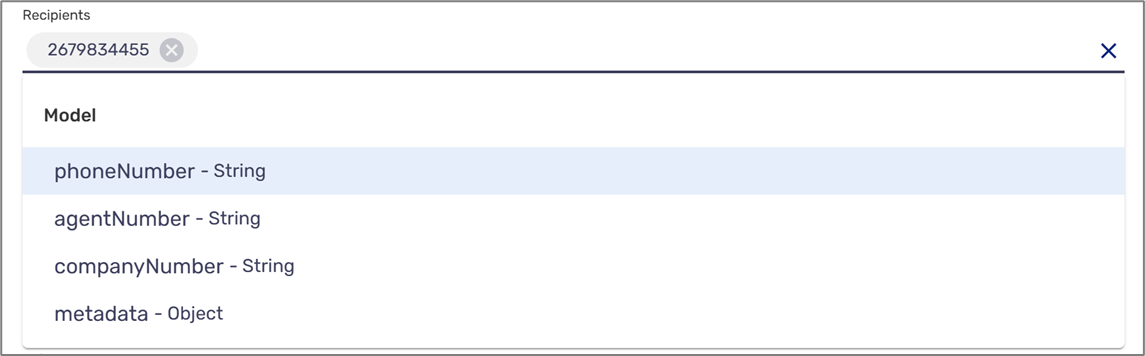**
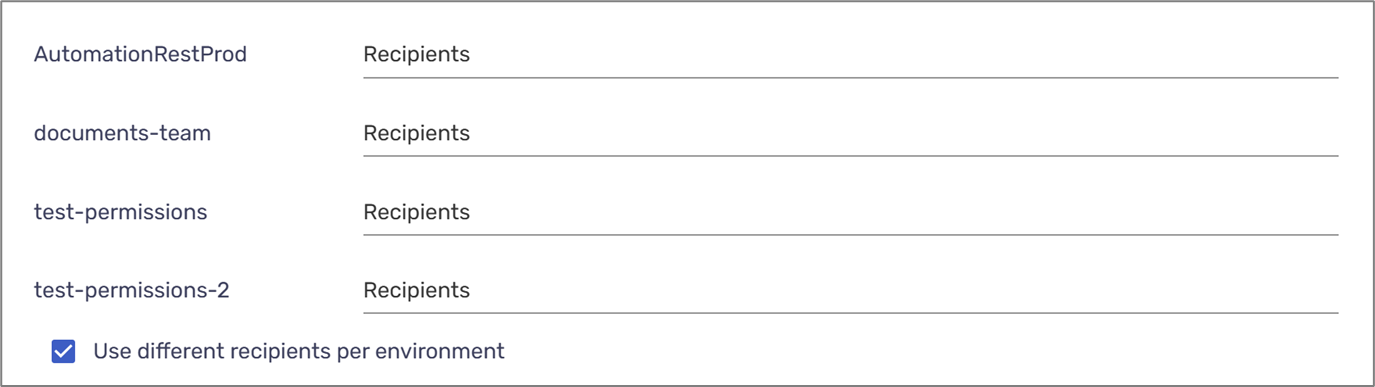
**Figure 13: Adding Recipients**
NOTEYou can add recipients to different environments.
- The language of the SMS (according to available languages in your environment)
- Sender - can include dynamic data items and/or metadata items

**Figure 14: Sender**
- Message Body - the content of the SMS:
- The content can include dynamic fields:
- Data items
- Metadata items
- A Process link and a Co-Browsing link can be included in the content by clicking the + Add Dynamic Field option and selecting from the list under the Workflow category (1):
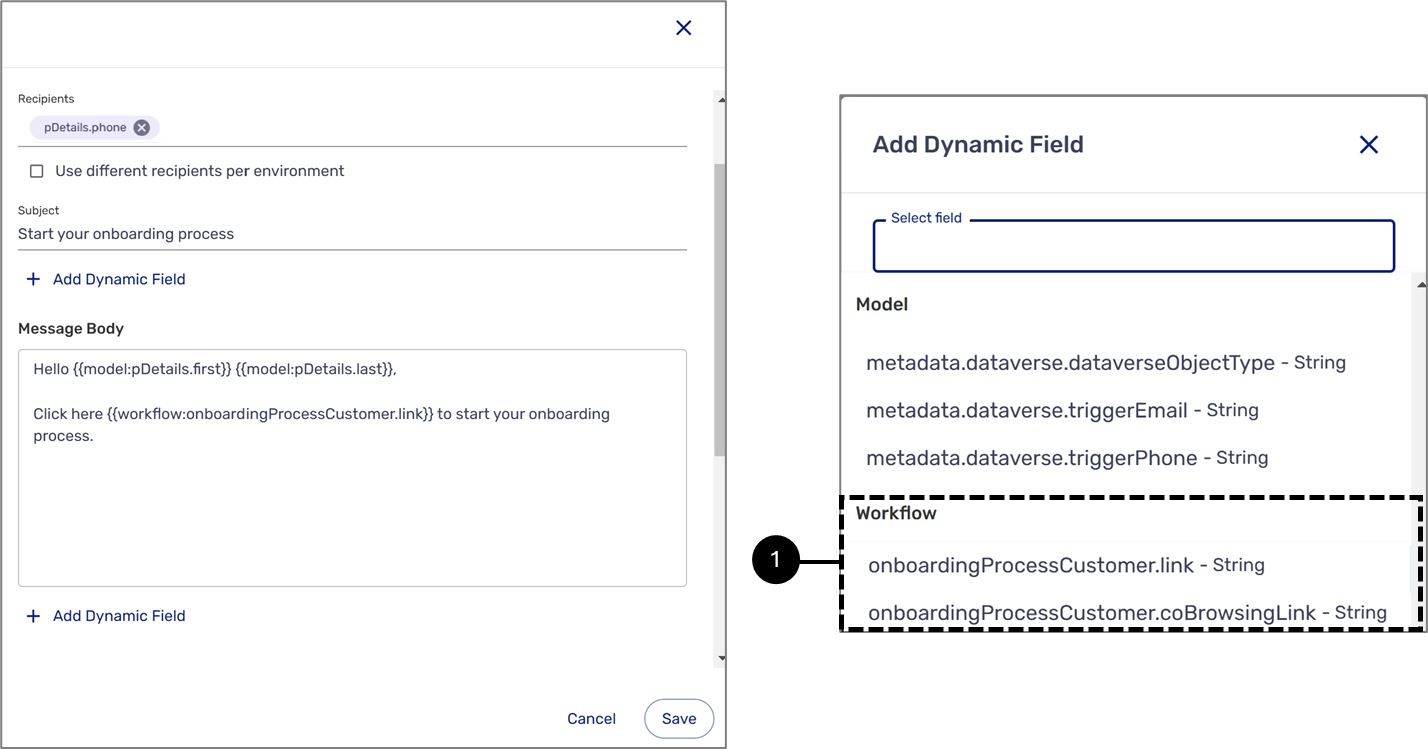
**Figure 15: Message Body**
### Messaging
For detailed information about messaging, click [here](/v1/docs/messaging).
NOTETo use Messaging, please upgrade your environment servers to version 50.1.0 or above.